
Remove sign lettering

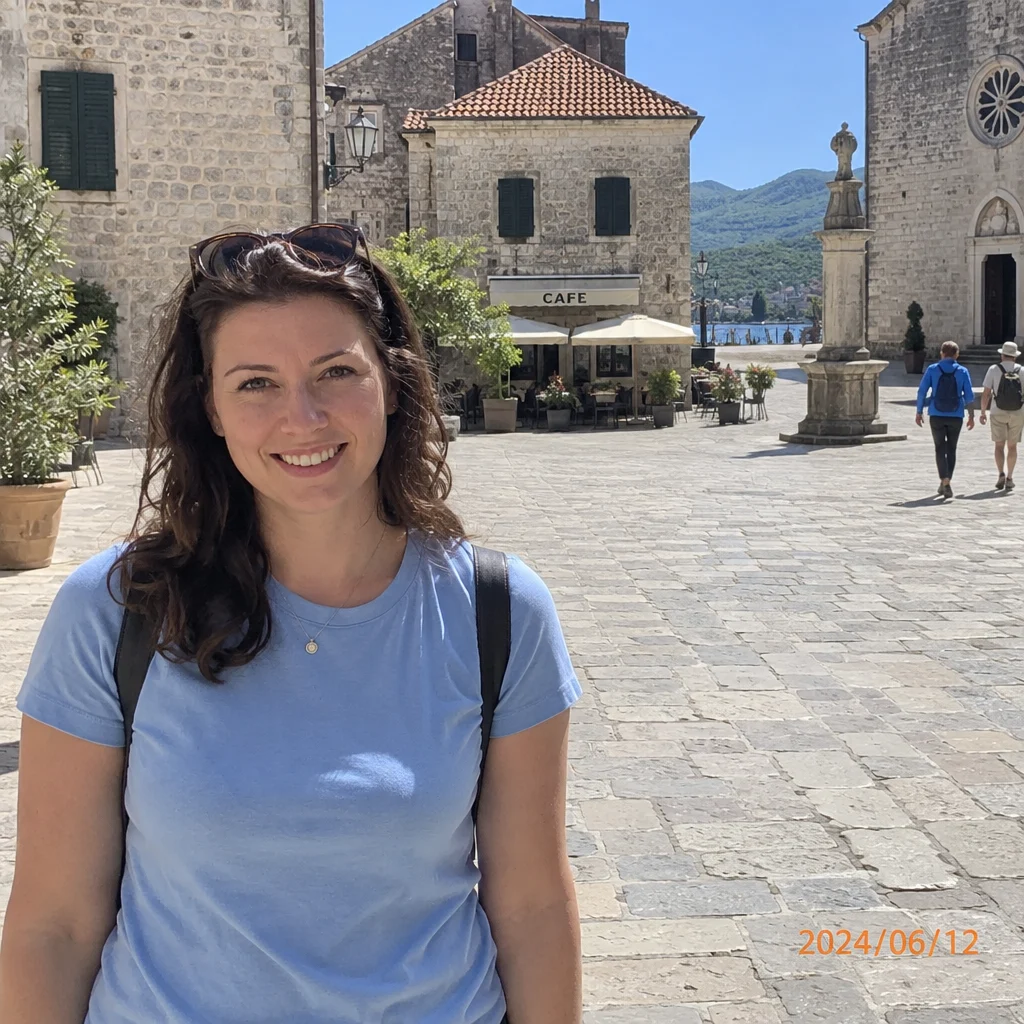
Erase a date stamp, caption or specified lettering from a photo. Choose the text to remove while keeping important signs and labels. Paid credits required.
Upload the original fileGPT Image 2.5 Sunburst · medium · 1:1
One image per generation. Failed tasks restore credits. Each new version uses credits.
Upload one JPG, PNG or WebP up to 7 MB. Sign in and buy credits to generate; no signup credits. The model and quality determine the quote shown below.

AI-generated demo input and its actual Yix edit. One example, not a guarantee of every result.
Zoom in around the erased letters. Check for leftover strokes, smeared texture and unintended changes to other text.
Uploaded originals require your account to access. Generated image links can be opened by anyone who has the link. Avoid sensitive photos.
Erase a date stamp, caption or specified lettering from a photo. Choose the text to remove while keeping important signs and labels. Paid credits required.
Use your own image or one you have permission to edit. Name the text and its position, and list any labels or signs that must remain.

AI-generated demo input and its actual Yix edit. One example, not a guarantee of every result.
Use the largest original you have. Avoid screenshots, heavy compression and photos of a screen.
The task instructions are already filled in. Adjust them, choose a model, quality and ratio, and review the credit cost before generating.
Compare the result with your original, inspect important details, then download. A new attempt uses credits again; keep a copy of your original.
Text over a face or detailed artwork is harder to remove. The covered area is synthesized, not recovered; readable text elsewhere may change.