
UGC Ad Generator
Use the UGC ad generator to turn a product brief into an eight-second vertical video. Edit the script, add a starting image and preview the credit cost.
Starting cost: 320 credits per attempt. Existing Yix credits apply.
Starts with Seedance 1.5 Pro · 8s · 720p · 9:16 · audio. You can change the model and settings below.
Start with a finished ad
Watch a product in action, then use its brief as the starting point for your own ad.
Skincare · Morning ritual
Sneakers · Unbox & style
Earbuds · Ready to go
AI-generated product concepts with English voice. These samples use Seedance 2.0 Mini; your new clip uses the model selected below. Results will vary.
2. Generate your clip
Optional: upload a starting frame with the product and presenter already in place.
Exact credit cost shown before generation
Plan your credits
320 credits per attempt
320 credits for this plan
Estimate before deducting your balance. Sign in to see your actual shortfall.
Enough for this generation · 400 credits · $4.90
400 credits · One-time payment · Valid for 365 days after purchase · No subscription
Continue with this taskExamples assume a fresh one-time pack, valid 365 days, with no subscription. These are credit budgets, not guaranteed successful results. New versions use credits again; different settings change the cost. Existing credits apply.
Review the product and spoken words before publishing.
Product photography & video studioFrom input to result
AI-made workflow illustration; not a measured before-and-after result.
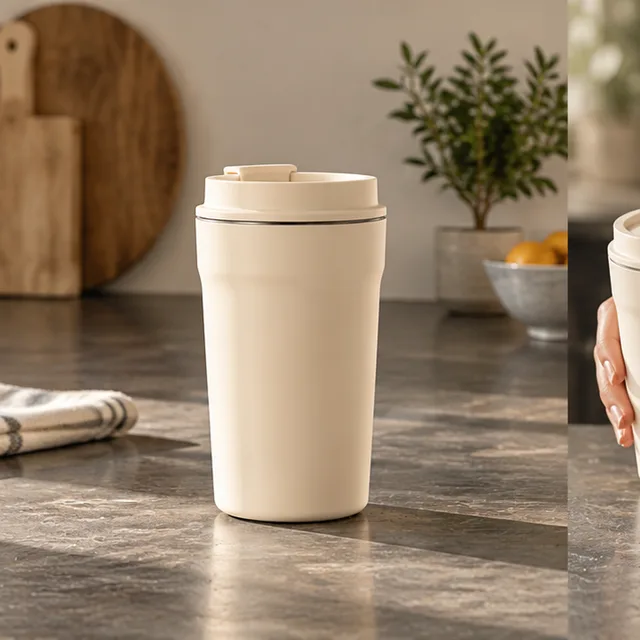
01 · Original / idea
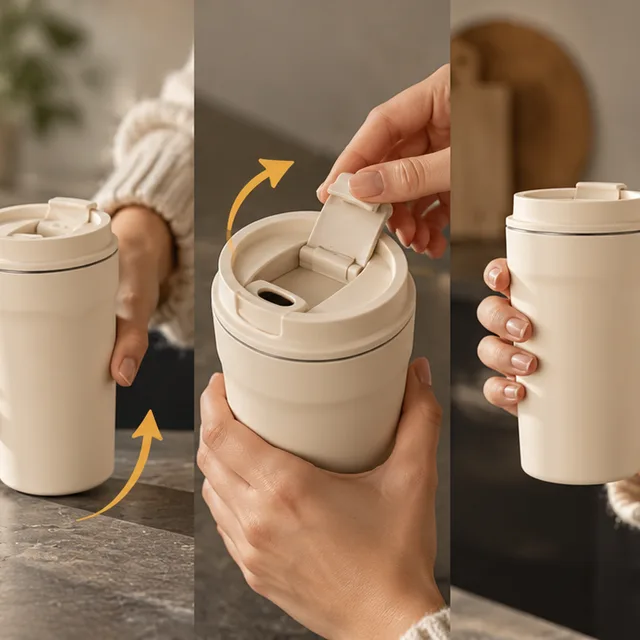
02 · Operation
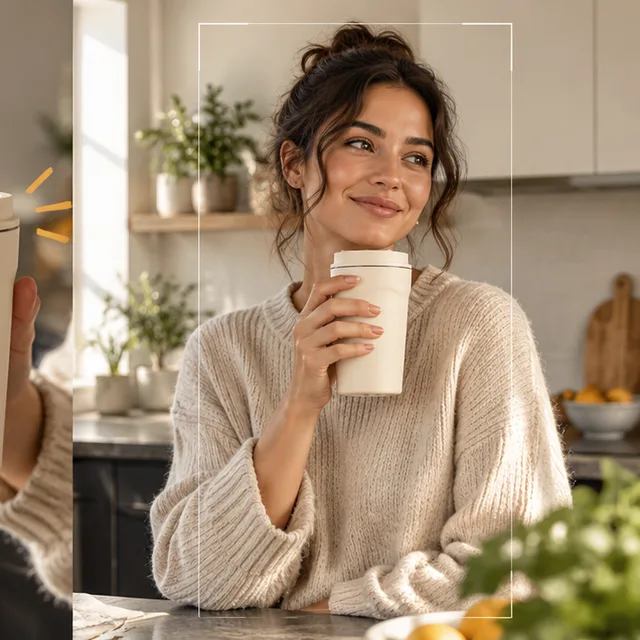
03 · Illustrated result
How to make a UGC video ad
- Write a brief. Enter the product and audience, one benefit, a short opening line and a call to action. Select Prepare my ad draft.
- Review and generate. Edit the draft prompt, add an optional starting frame, and check the model, settings and credit quote. Sign in and select Generate.
- Review and download. Play the clip and check the spoken words, framing and product appearance. Download the MP4 and preview it in your intended placement.
Write an eight-second script for the UGC ad generator
Start with a benefit the viewer can see. A mug lid that opens with one hand, a moisturizer texture or the compact size of an earbud case gives you something to demonstrate. An adjective such as “premium” needs a supporting shot. Show the material, the finish or the action that makes it feel that way.
Use the four fields in the brief as a script template. Product and audience identifies the item and who would use it. One product benefit describes the visual proof you want to show. Opening line gets the viewer's attention. Call to action tells them what to do next. Only the opening and call to action need to be spoken. Keep them to around fifteen words total for an eight-second draft, then read them aloud at the pace you want. Leave enough time to hear the last word.
| Time | Purpose | What to show |
|---|---|---|
| 0–2 seconds | Hook | A clear product view and one short opening line |
| 2–6 seconds | Demonstration | The simplest action that shows the benefit |
| 6–8 seconds | Call to action | A steady view of the product and one next step |
If the first line names a problem, show the action that resolves it. If it names a situation, make the setting visible. “Hands full?” fits a close view of someone holding a mug. “Upgrade your routine” could apply to almost anything. Replace a generic promise with a scene your audience recognizes. Pick one verb for the call to action, such as “See the colors” or “Find your size,” and confirm the destination actually offers that choice.
Adapt a real example
Use Use this brief on the sample above to load its starting text. The published clips are generated examples from Seedance 2.0 Mini, and the result you create uses the model shown in your own setup.
Travel mug, one-hand demo. “Hands full? Keep one free.” The benefit is a hinged lid a commuter can open with one hand. A close shot of one thumb lifting the lid is enough to demonstrate it. Keep the cup upright and the lid visible. If your version needs a different lid or material, specify it in the brief and use a clear starting image. Compare the hinge and latch before approving the clip.
Skincare, morning ritual. “Keep your morning simple.” The demonstration is the cream texture on the back of a hand. Show the cream before the swipe and leave it visible afterward. That gives the viewer time to see the texture. Use a call to action such as “See the texture for yourself” only where the product page makes that detail available. Use your own footage when the exact product effect needs to be demonstrated.
Sneakers, unbox and style. “Your everyday outfit, upgraded.” Show a single shoe leaving the box, then give it one slow turn so the viewer can see its shape and materials. The last shot can show how the pair looks with a simple outfit. Check that the colors, laces and soles stay consistent across cuts. Keep the original product photo nearby for the comparison.
Earbuds, ready to go. The compact case is the point of the clip. Keep the case open and show both earbuds sitting in their slots. A slow push-in lets the viewer see the product without requiring a complicated hand movement. A stable final shot gives you room to add an accurate caption in your editor.
Use a starting image when the product needs to stay recognizable
Start with a portrait crop where the label and silhouette are readable. Keep the hand pose simple and avoid covering the main feature. If the product needs to be held, arrange it in the frame before generating. Ask for one motion, such as a slight tilt or a close push-in. Check whether the model you choose accepts a starting frame and review the credit quote after changing settings.
If the product photo needs a new setting, build a still in AI Product Photography first. Check the packaging, download the approved still and upload it as the starting frame here. That adds a separate photo-generation step with its own credit cost. A small label, tiny display or complex hinge can still change during animation.
Prepare your vertical clip for the placement
The default draft is 9:16 at 720p with audio. Watch the full export with sound and then watch it muted. Check the hook at the beginning, product continuity in the middle and whether the call to action is complete at the end. If you add captions, keep them clear of interface overlays and preview the placement at phone size. The sample captions on this page help you review the examples. Add and check captions for your own export in an editor when needed.
| Placement | What to check |
|---|---|
| TikTok in-feed | For Non-Spark auction ads, TikTok recommends 9:16 at a minimum of 540 × 960 px. Confirm the safe zone and the requirements for your ad type. TikTok ad specs |
| Instagram Reels | Plan a 9:16 cut. Preview captions and product placement in the actual Reels placement before publishing. Meta Ads Guide |
| YouTube Shorts ads | Google Ads lists 9:16 at 1080 × 1920 px and 6–60 seconds for Shorts. Check the actual export and prepare a delivery file that meets the selected campaign format. Google Ads video specs |
Review the ad before spending on another version
Set a clear reason for each retry. If the speech was clipped, shorten it and keep the visuals the same. If the product changed shape, simplify the demonstration or use a clearer reference. If both versions look acceptable, check how much of the product remains visible under the interface in your placement. Use the least complicated clip that demonstrates the benefit clearly.
Synthetic presenters can demonstrate a concept. For an ad built around a customer's actual experience, use real footage and permission. Review spoken and on-screen claims against your product information before publishing. If a draft invents a benefit or changes the package, revise it before using the clip. For a product that must remain exact in every frame, consider using the generated clip as a storyboard for a real shoot.
Frequently asked questions
Can I use the UGC ad generator for free?
You can browse the samples and prepare a script without paying. There are zero free video generations. Sign in to generate and review the exact quote for the selected model before starting.
Does YIX watermark the video?
YIX does not add a visible watermark during export. Inspect the generated clip for stray lettering or marks that the model may render.
How long does generation take?
There is no fixed turnaround. Model, resolution and queue conditions affect the wait. Check the current task before sending another generation.
Which products work well?
Start with one item that has a benefit you can demonstrate in one simple action. The sample briefs cover a mug, skincare, sneakers and earbuds.
What format and dimensions can I download?
The default output is an eight-second vertical MP4 at 9:16 and 720p with audio. Other options depend on the selected model. Check the actual dimensions of the file before submitting it to an ad platform.
When should I use real footage instead?
Use real footage when the ad relies on an actual customer testimonial, a measured outcome or exact product behavior in every frame. Compare the generated product and voice with the brief before publishing.
Check your result, then choose the next step
Review the spoken words, product shape and timing before publishing. Use real customer footage and permission when your ad relies on a customer testimonial.