
Remove one background person
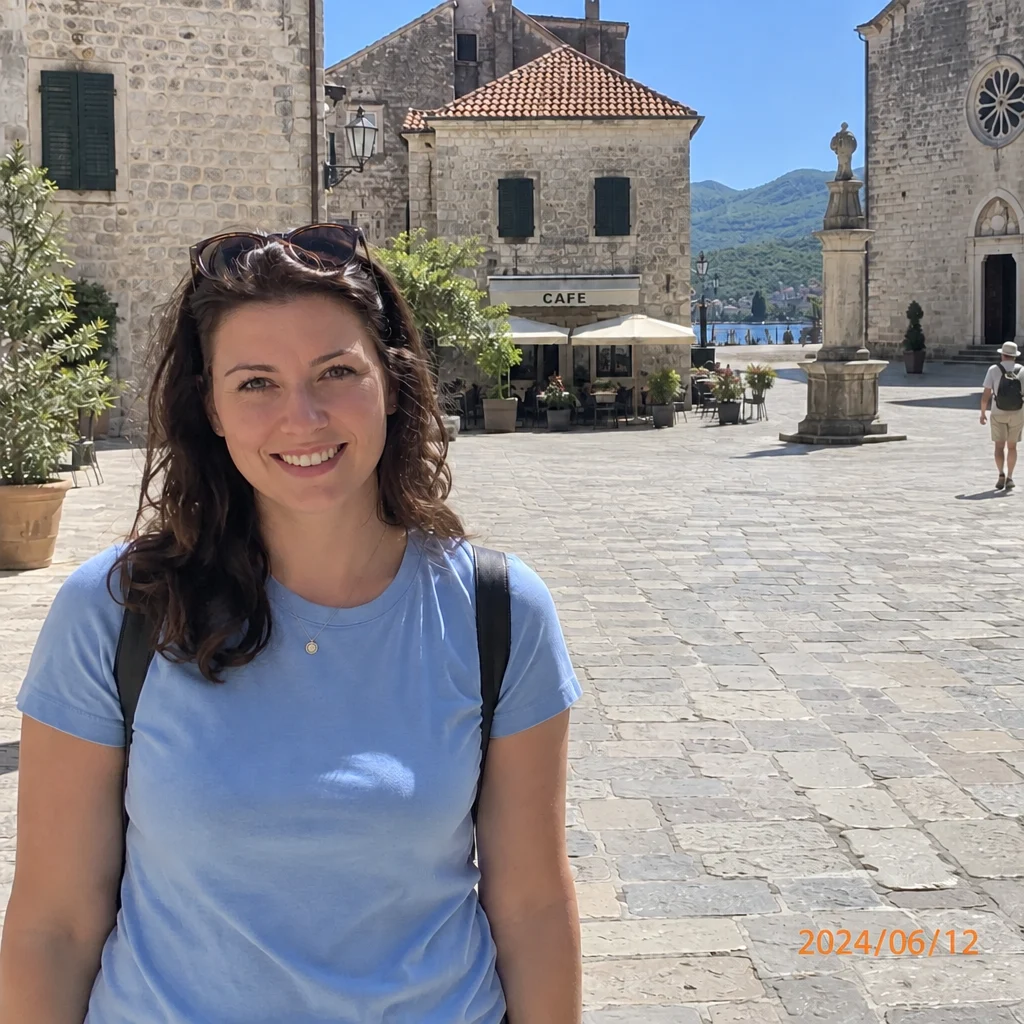
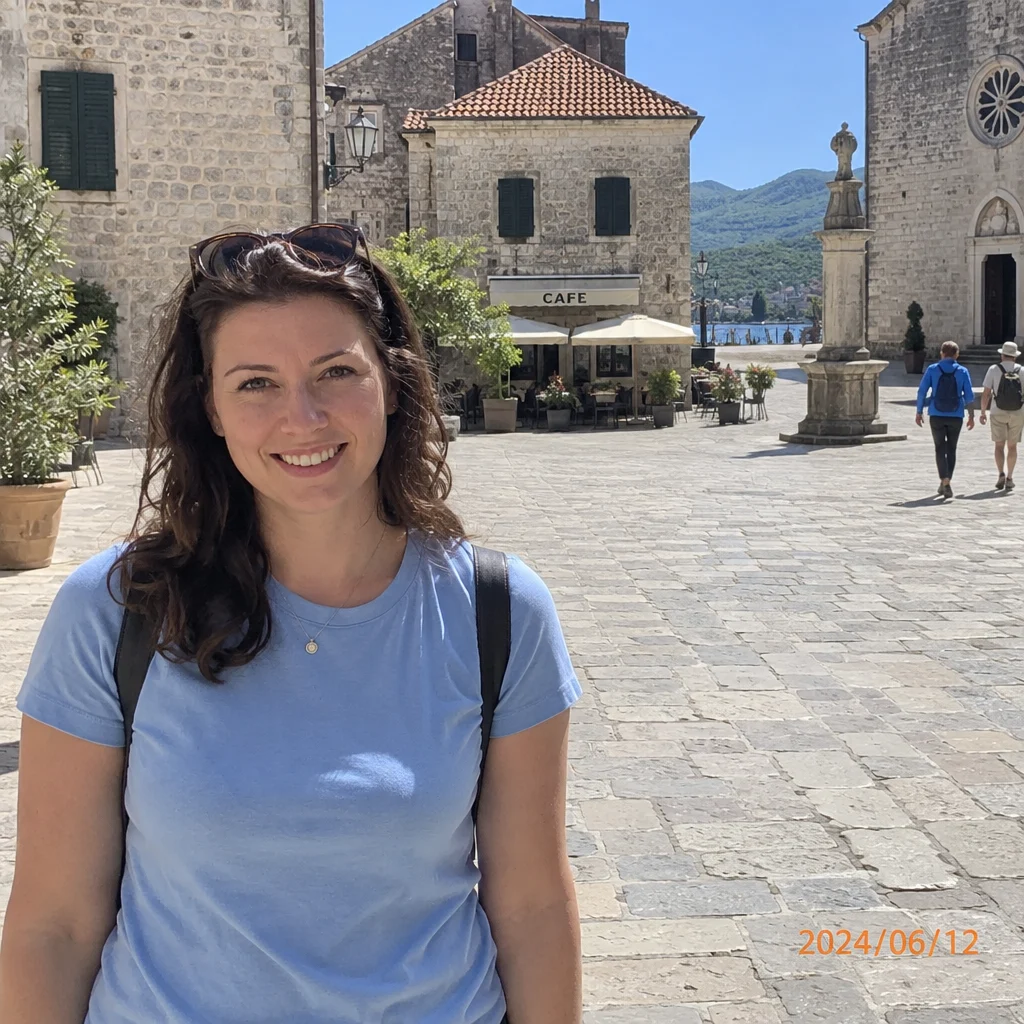
Remove background people or one specified person from a photo. Describe who to remove and who to keep, then generate with paid credits.
Upload the original fileGPT Image 2.5 Sunburst · medium · 1:1
One image per generation. Failed tasks restore credits. Each new version uses credits.
Upload one JPG, PNG or WebP up to 7 MB. Sign in and buy credits to generate; no signup credits. The model and quality determine the quote shown below.
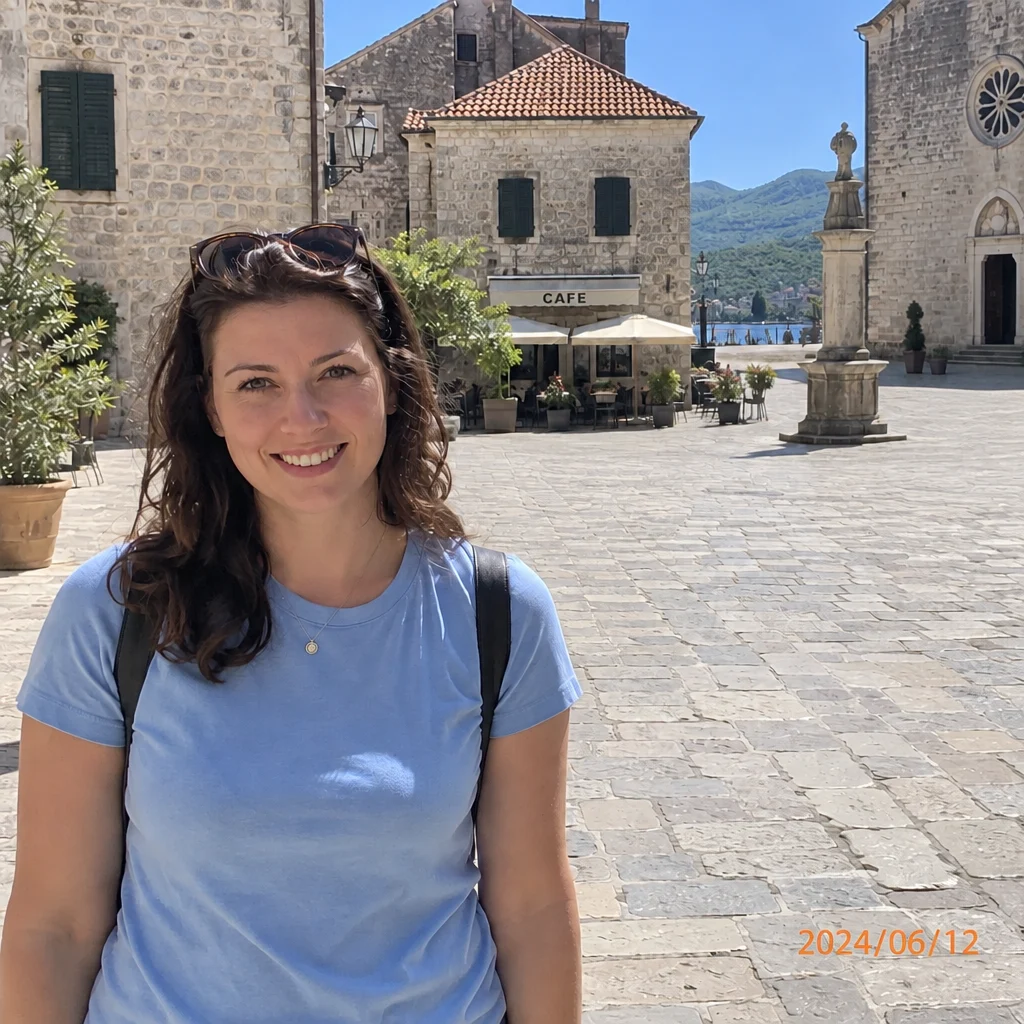
AI-generated demo input and its actual Yix edit. One example, not a guarantee of every result.
Check every person you wanted to keep, then inspect the filled background, limbs and overlapping edges.
Uploaded originals require your account to access. Generated image links can be opened by anyone who has the link. Avoid sensitive photos.
Remove background people or one specified person from a photo. Describe who to remove and who to keep, then generate with paid credits.
Use a photo where the target is clearly separated from the people you want to keep. Specify clothing and location, such as the blue jacket at the far right.
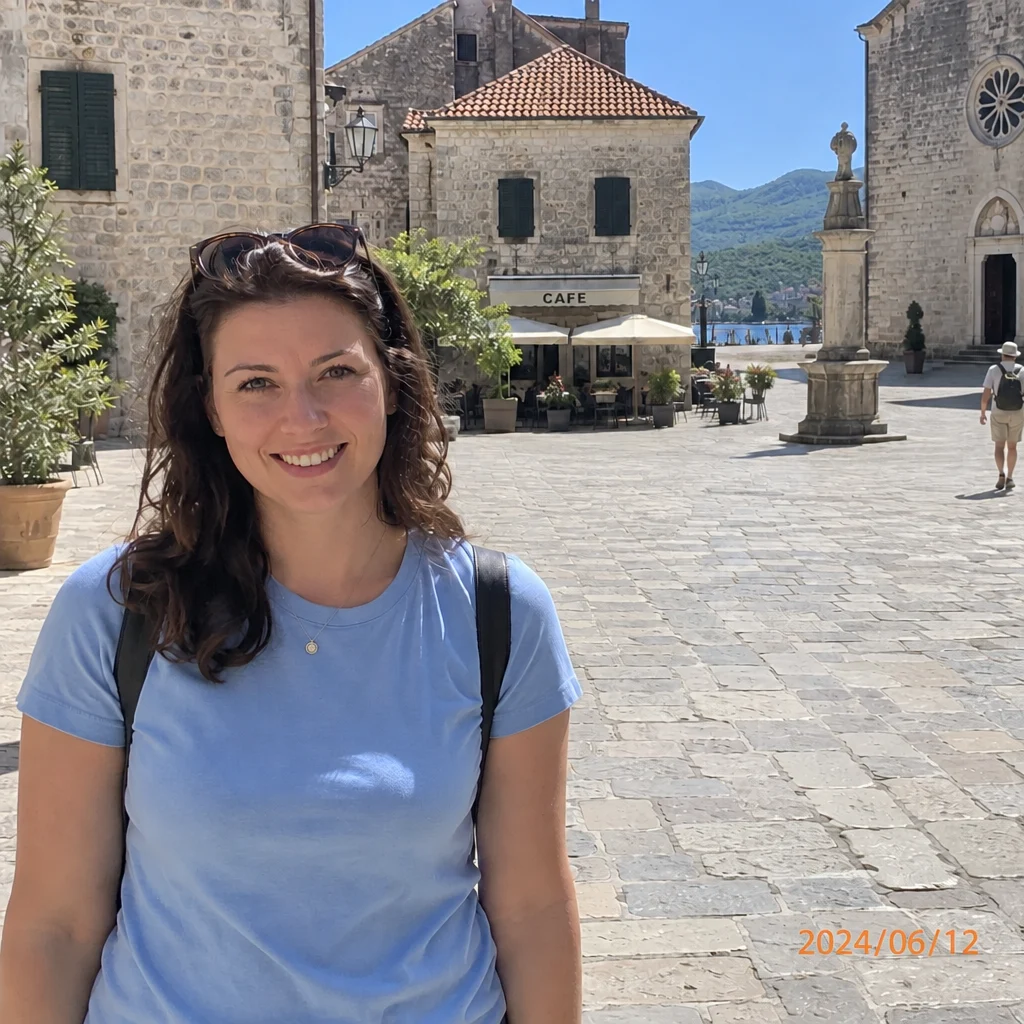
AI-generated demo input and its actual Yix edit. One example, not a guarantee of every result.
Use the largest original you have. Avoid screenshots, heavy compression and photos of a screen.
The task instructions are already filled in. Adjust them, choose a model, quality and ratio, and review the credit cost before generating.
Compare the result with your original, inspect important details, then download. A new attempt uses credits again; keep a copy of your original.
Hidden areas are newly generated. Overlapping people and crowds are harder to edit; faces, hands or nearby objects may change. There is no brush selection.