
THE FAMILY ALBUM, A LITTLE CLEARER

AI photo restoration

Clean up a faded print, repair scratches or explore a color version. Upload one old photo and choose what to fix. The instructions are already written.

Upload your old photo

40 credits per restoration

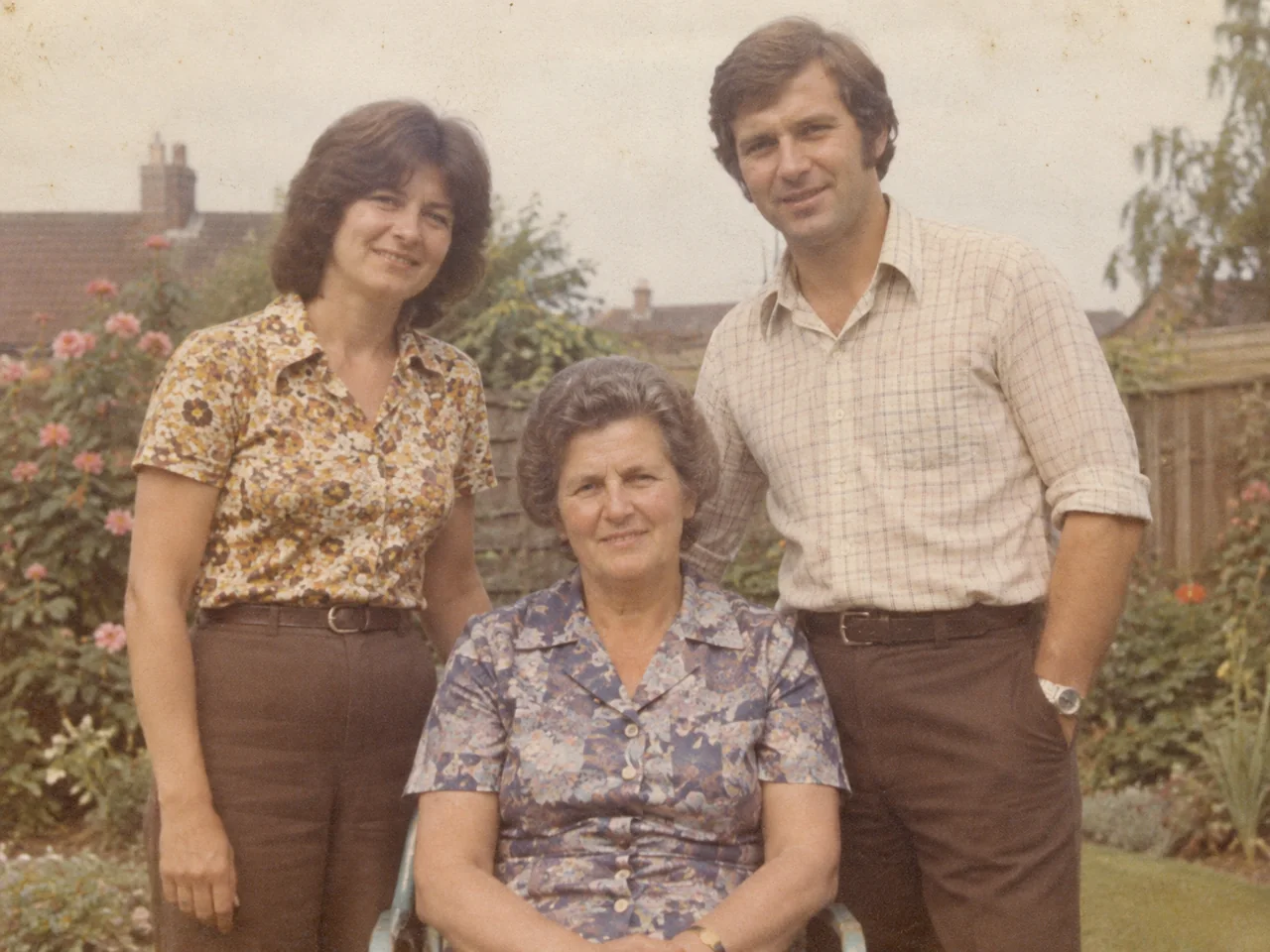
Faded family photograph · Restored
Faded family photograph · Original
Drag to compare. Use the arrow keys for small adjustments.
Faded family photographDrag to compare. Use the arrow keys for small adjustments.

Upload your old photo

JPG, PNG or WebP · up to 7 MB · one photo at a time

Drop a scan here, paste an image, or browse.

Sign in to upload
What would you like to fix?
Anything we should keep? Optional

0/400

40 credits per restoration
Sign in to upload

See what changes. Check what stays.

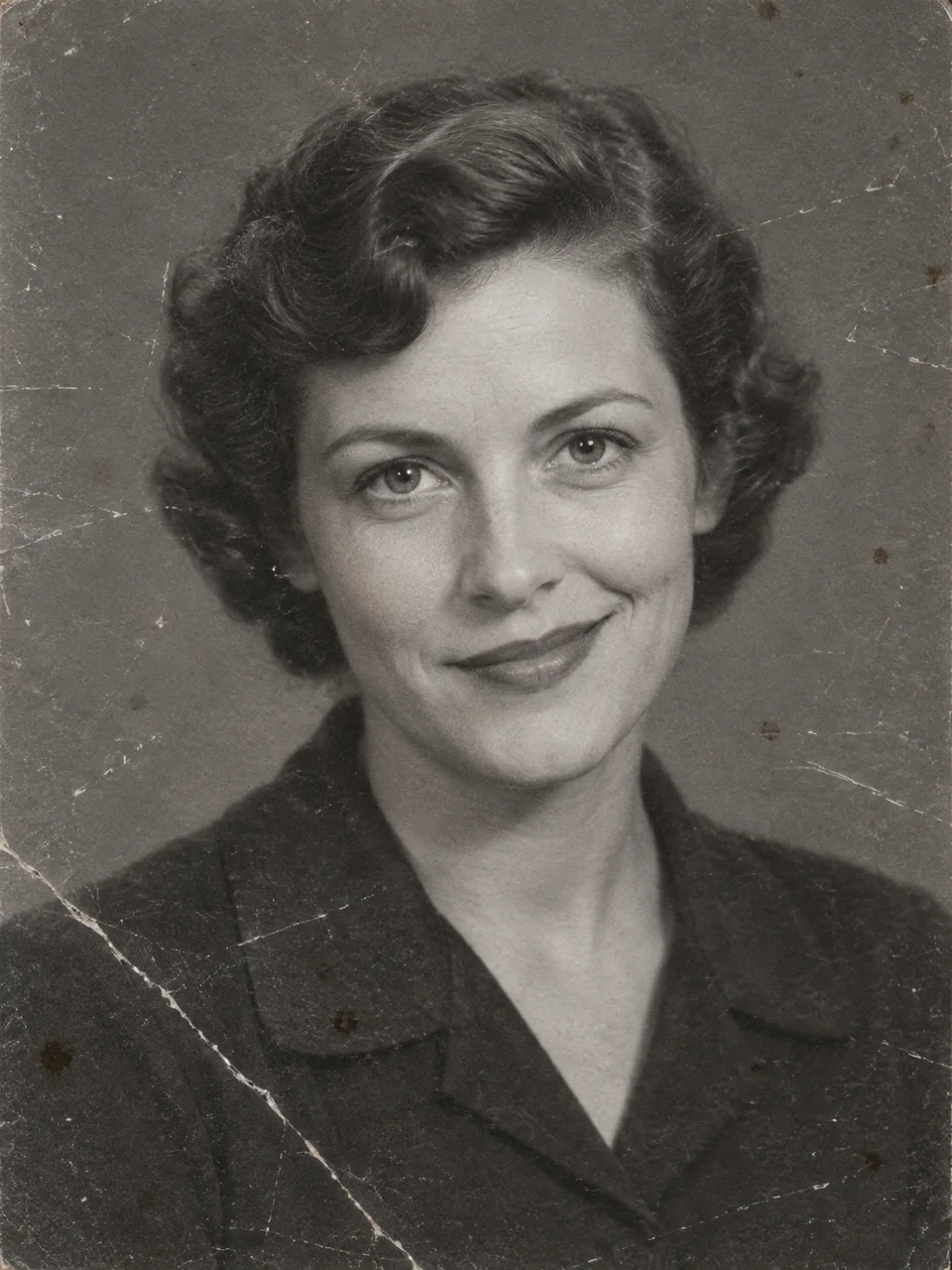
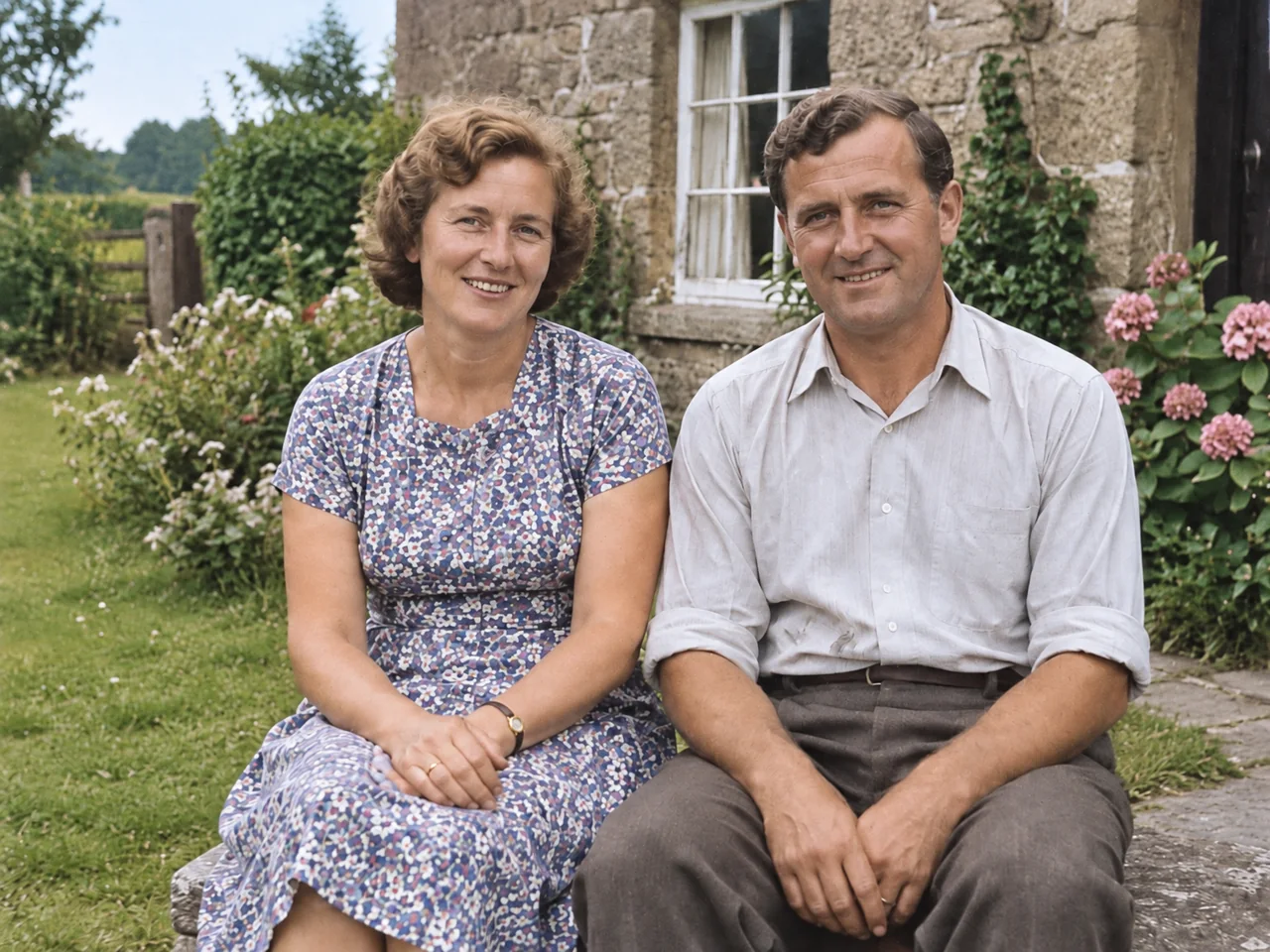
AI-generated demo photos, restored with this tool’s settings. These are fictional people, not customer photos.

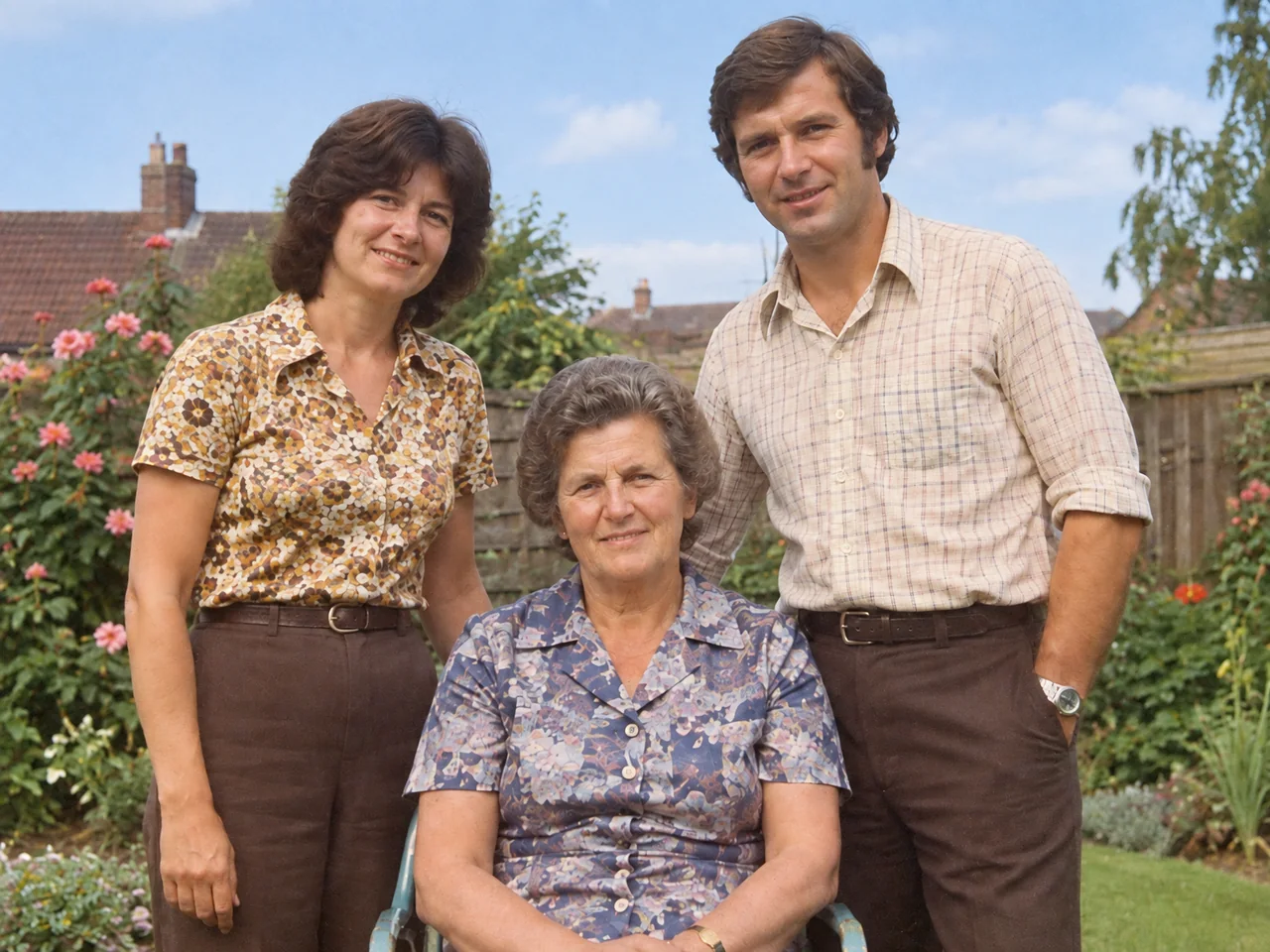
Faded family photograph · Restored
Faded family photograph · Original
Drag to compare. Use the arrow keys for small adjustments.

Faded family photograph

Natural restoration improves the faded tones while retaining the people and the garden setting.

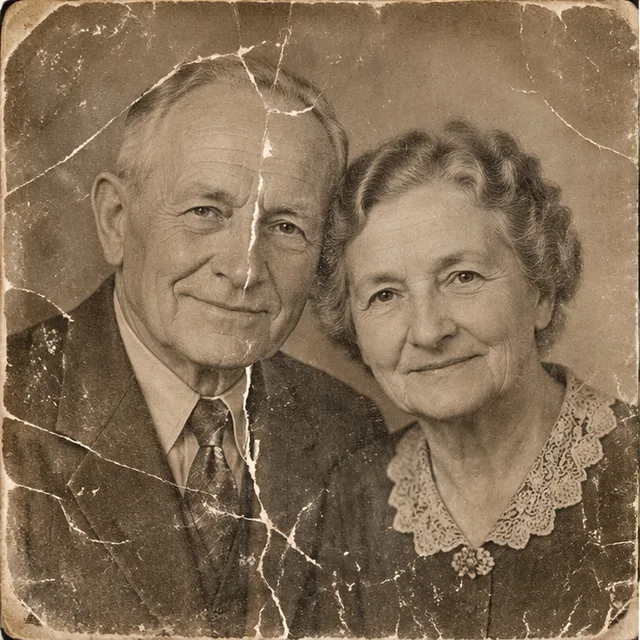
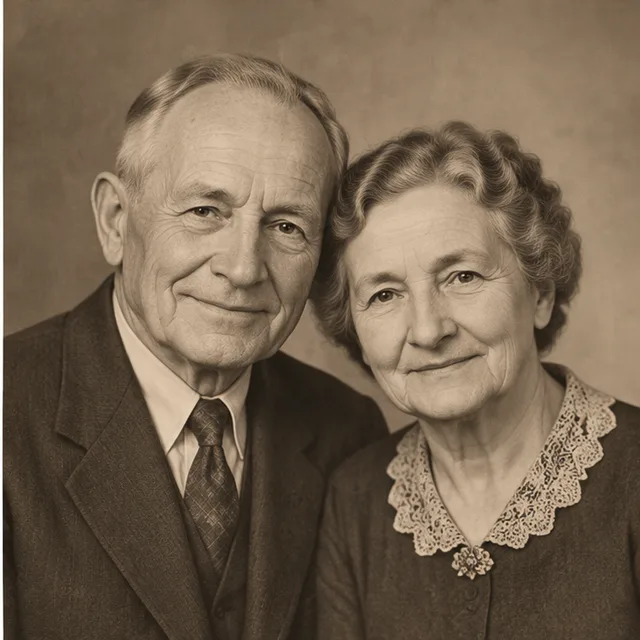
Scratched black-and-white portrait · Restored
Scratched black-and-white portrait · Original
Drag to compare. Use the arrow keys for small adjustments.

Scratched black-and-white portrait

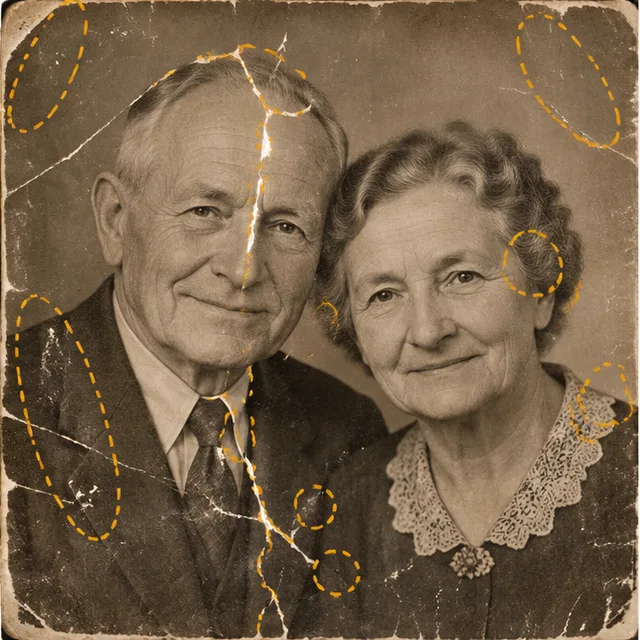
Damage repair targets scratches and creases. The portrait stays monochrome.

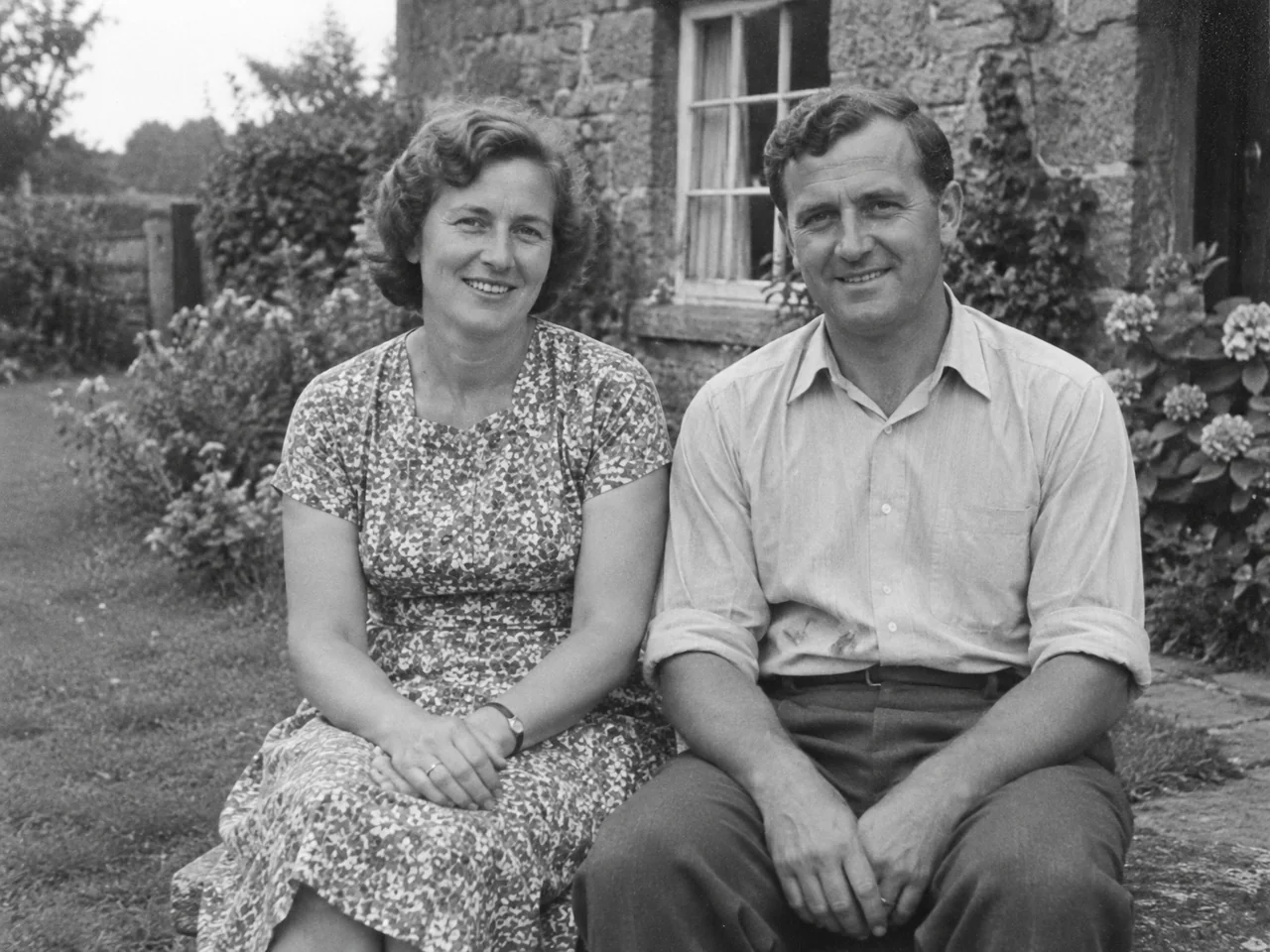
A color version of an old photograph · Restored
A color version of an old photograph · Original
Drag to compare. Use the arrow keys for small adjustments.

A color version of an old photograph

Colorization adds an interpretation of skin, clothes and surroundings. It cannot reveal the original colors.

How to restore an old photo

  1. 01

    Start with a clear scan

    Scan the print flat, or photograph it straight on in even light. Avoid glare, fingers and shadows across the photo. Keep an untouched copy of the original.

  2. 02

    Choose the repair

    Use Natural restoration for fading and light dust. Choose Scratches & damage for creases and small tears. Restore & colorize is optional; the other modes preserve monochrome photos.

  3. 03

    Compare and download

    After processing, drag the divider across the full photo. Check faces and lettering at a larger size. Download the version you want to keep; another attempt uses credits again.

A careful repair starts with what survives

A scan with readable faces and mild damage gives the tool more evidence to work from. A torn-away face, motion blur or a blank patch contains less information. AI may fill gaps with plausible detail, which is not proof of what was originally there. For an irreplaceable photograph with major missing areas, consider a skilled human restorer.

Before you restore a photograph

Will restoration change someone’s face?

It can. The repair instructions prioritize the original age, facial structure, expression and pose, but likeness is not guaranteed. Start with Natural restoration, compare the eyes and mouth closely, and keep the original. Severe facial damage is a good reason to seek manual restoration.

Related discussion
Can I keep the photo black and white?

Yes. Natural restoration and Scratches & damage both ask the AI to preserve monochrome photos. Color is added only when you select Restore & colorize. Compare the output before saving it because AI results can vary.

Related discussion
Can AI recover the actual original colors?

Not from a black-and-white scan alone. Colorization produces plausible colors, not a historical record. If you know a clothing or object color, add it to the optional notes. Keep the monochrome version alongside the color interpretation.

Related discussion
Can I repair deep tears or completely missing details?

Small scratches and damaged backgrounds may improve when nearby detail survives. Missing faces, lettering and large torn areas are much harder: invented detail may look convincing without being accurate. This tool cannot guarantee reconstruction of information absent from the photo.

Related discussion
Is it free, and do I need to sign in?

You can inspect the examples without an account. Uploading and restoring require sign-in, and each restoration uses the credits shown above the button. Downloading a completed result does not start another paid restoration. Failed tasks follow Yix’s normal credit-refund process.

Product help
Who can see my uploaded photo and result?

Your uploaded original is a private reference associated with your account and is processed to perform the repair. Generated results use unlisted public links: anyone who obtains a result link can view it. Sharing a result does not share your private original.

Product help