YIX

Free AI picture describer

Picture Describer: Describe This Image

Yix’s picture describer turns one uploaded picture into a clear text description of its subjects, composition, colors, lighting and visible text. It is free within daily limits, with no sign-in. You also get optional image-generation prompts.

Free · no sign-inImage not stored · 30-day result history

Drop an image here

JPG, PNG or WebP · up to 7 MB

or paste an image from your clipboard

Picture description

What is in this picture?

Your picture description, visible details and optional image prompts will appear here.

This browser’s description history

Reopen recent analyses without an account. History is private to this browser.

Results expire after 30 days. Uploaded images are not saved.

How to describe a picture in three steps

  1. 1

    Upload one picture

    Drop, browse or paste a JPG, PNG or WebP up to 7 MB. No sign-in is needed. Use a clear picture you have permission to upload.

  2. 2

    Choose a language and describe this image

    Select the output language and complete the security check, then press “Describe this image.” Keep the default target model if you only need a description; it shapes the optional generation prompt.

  3. 3

    Review and copy the description

    Compare the overview and details with your picture, check uncertain text, then copy the description. You can revisit it in this browser’s history for 30 days. Generating a new image is optional and requires sign-in and credits.

From reference image to a new result

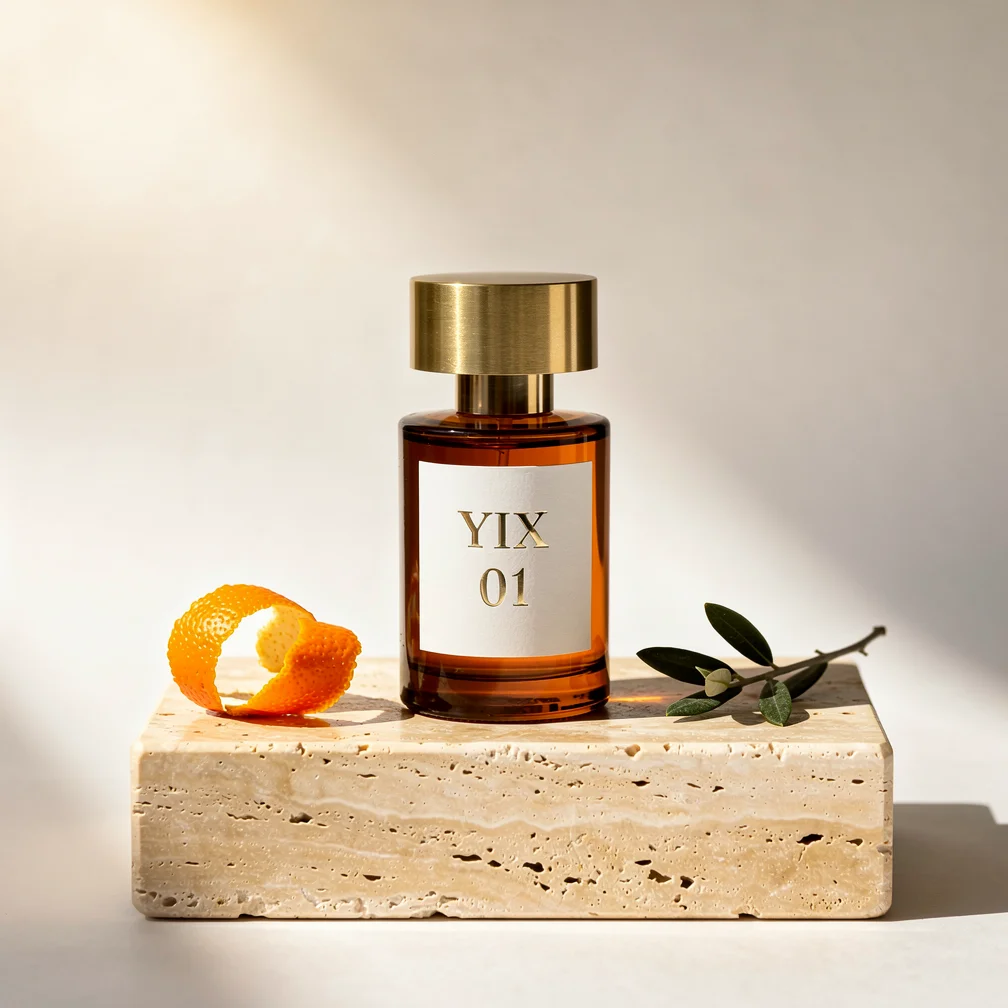
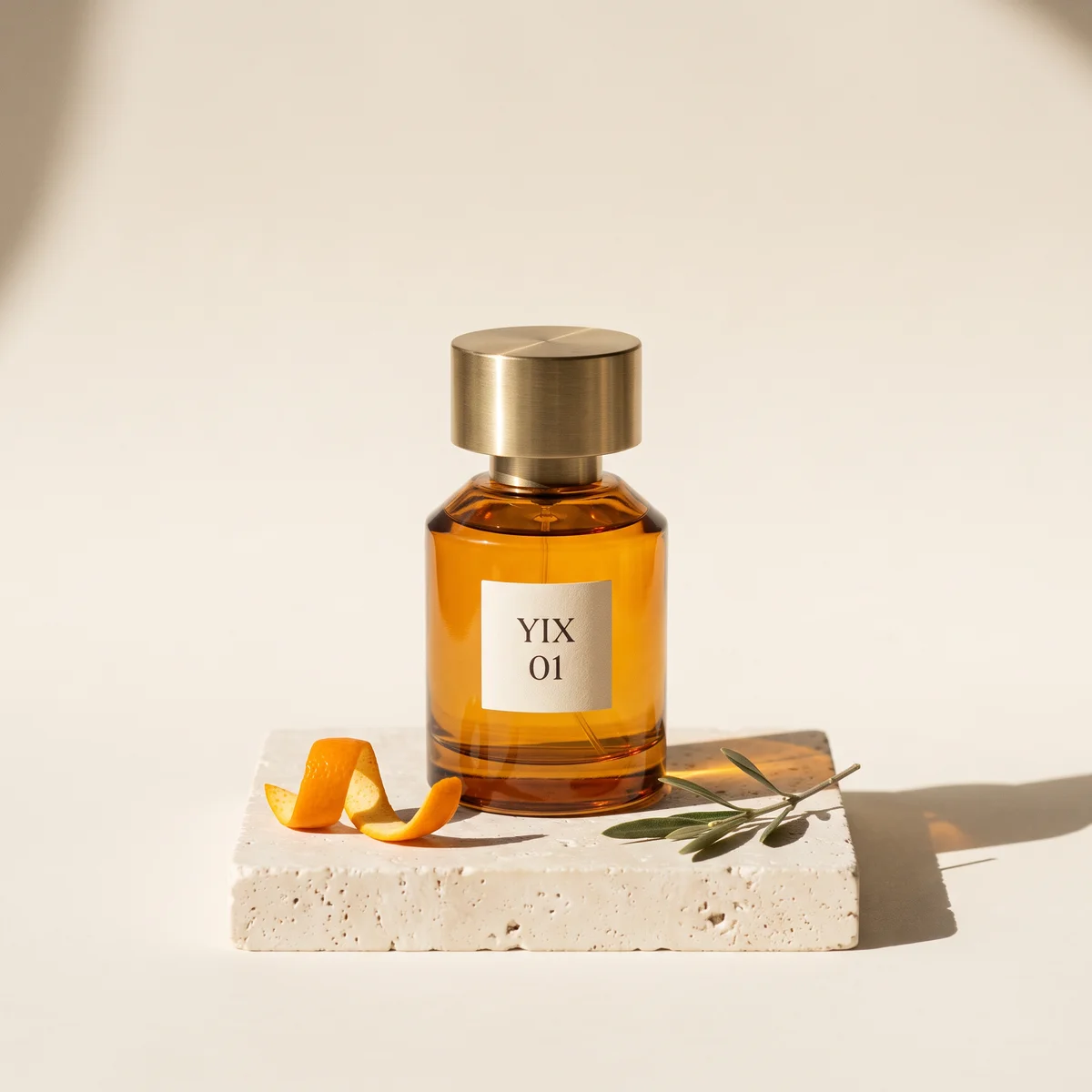
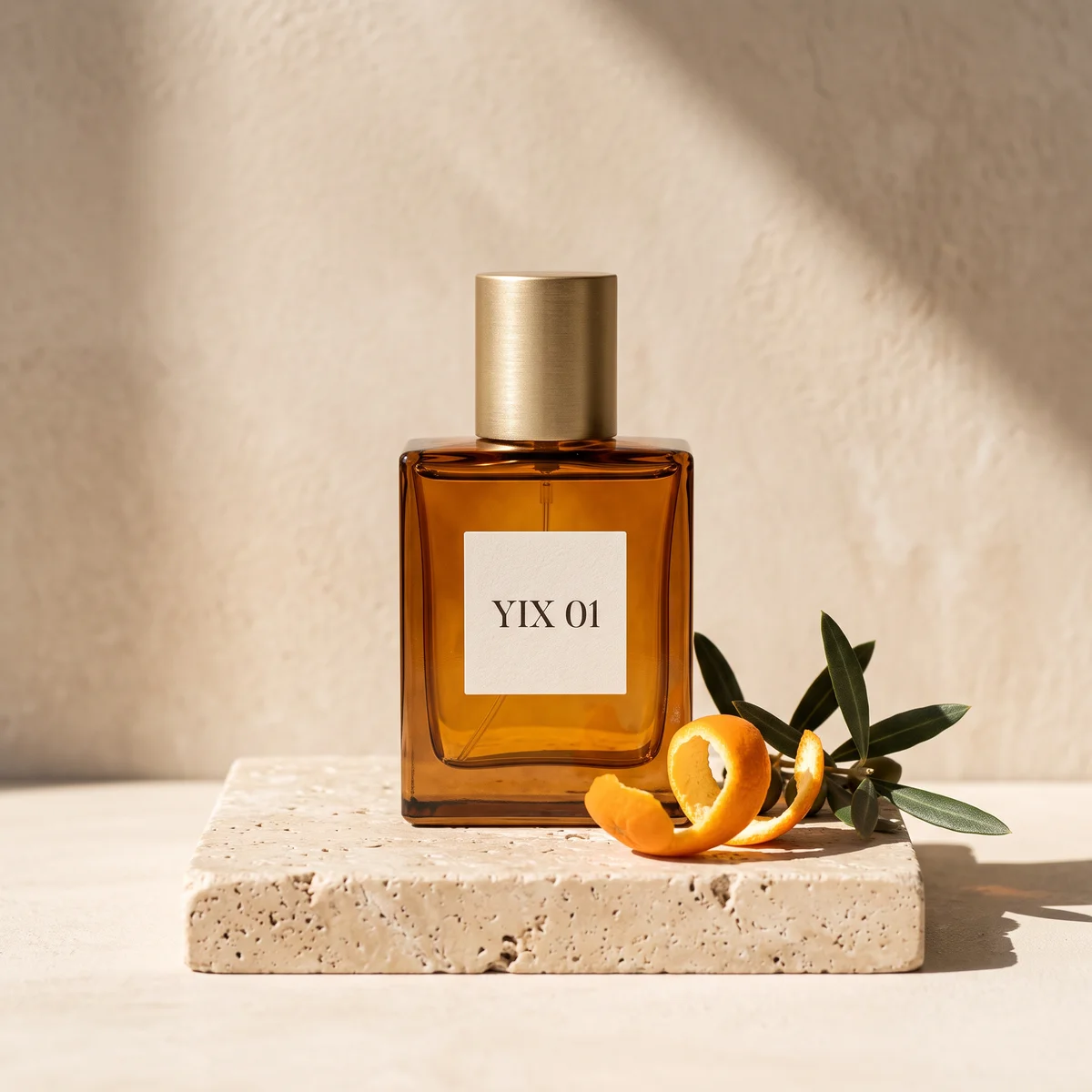
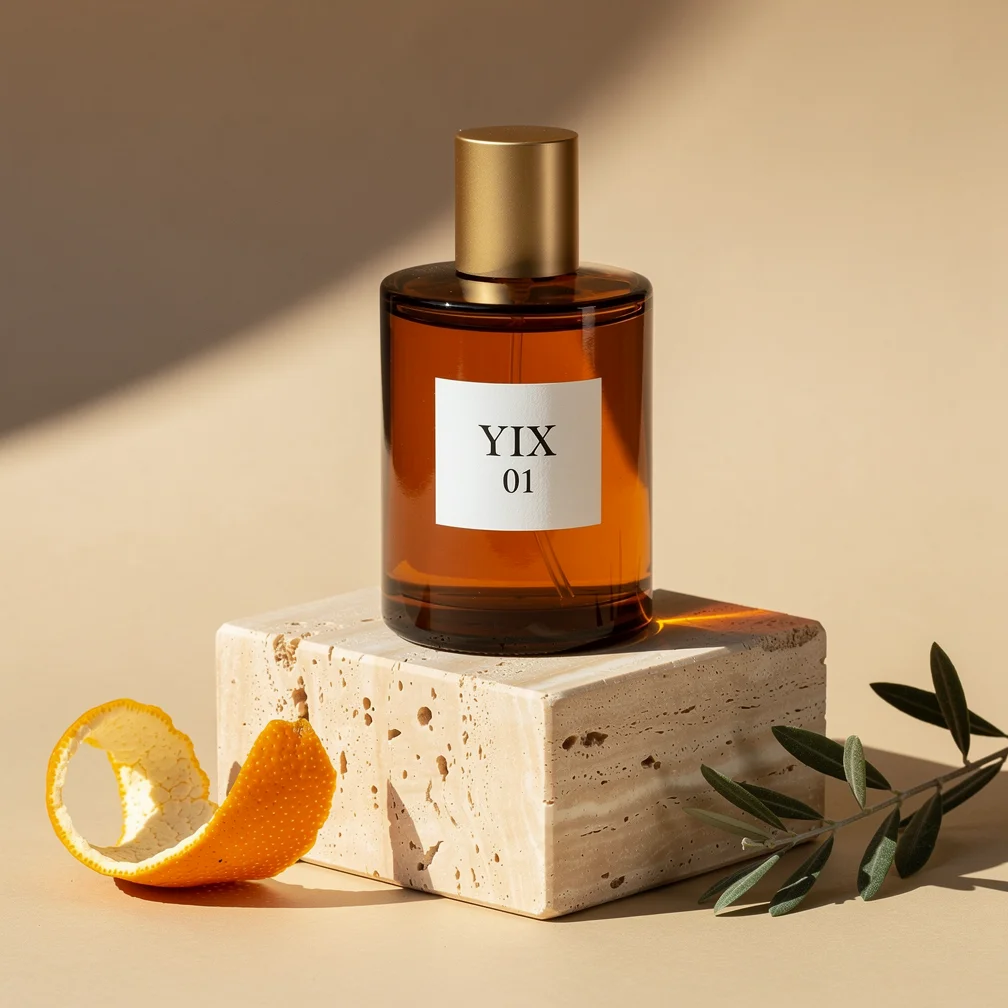
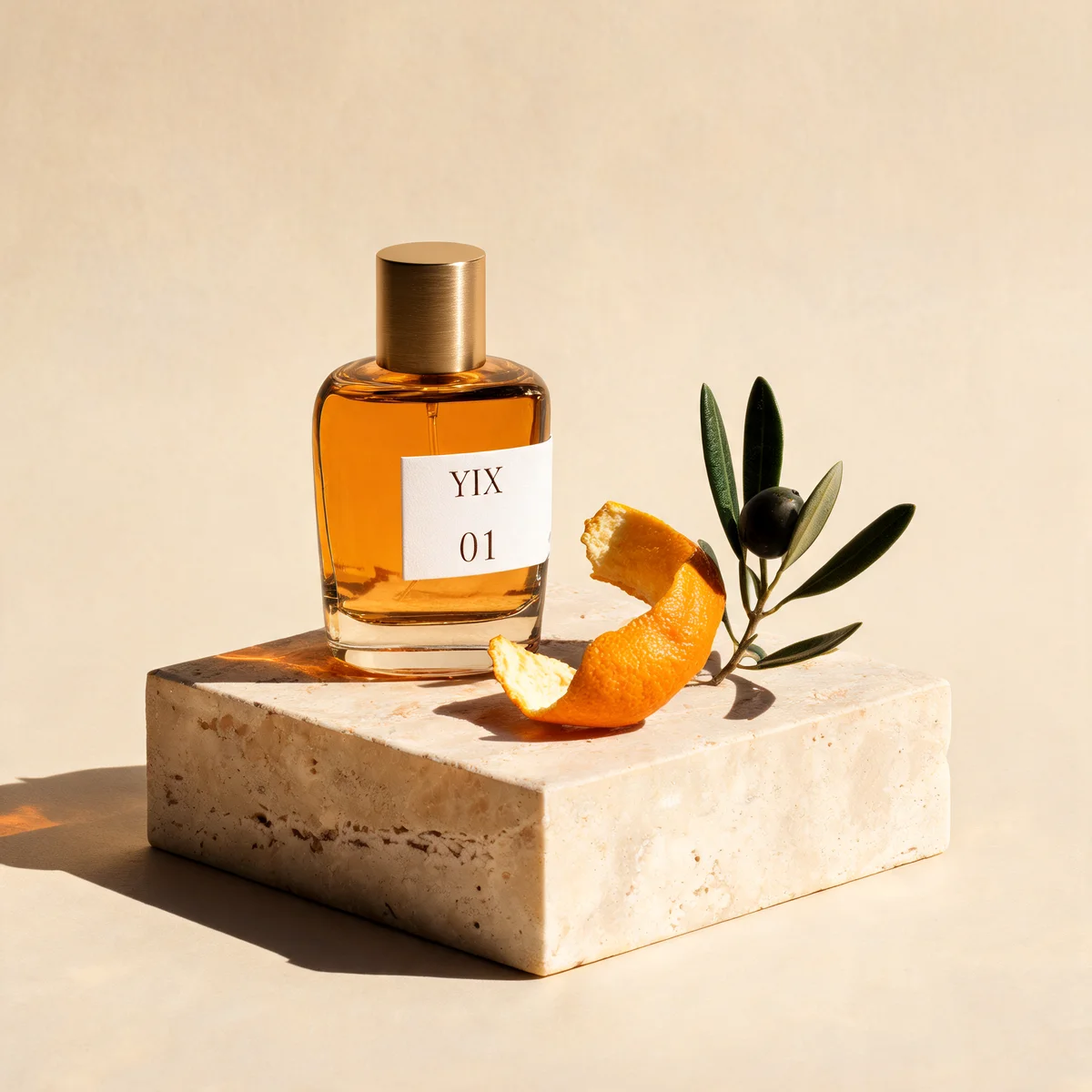
A fictional perfume photo, the prompt YIX extracted, and real regenerations. See what carried over and what changed.Example recorded 2026-09-22

Regenerated result · FLUX.2 Pro
AI-generated reference
Drag the divider or use the arrow keys to compare images.

Actual extracted prompt · English

Minimalist product photo of an amber glass perfume bottle with a brushed gold cap on a square travertine pedestal. A white label on the bottle reads 'YIX 01' in a clean serif font. A curled orange peel and a small olive branch lie beside it. Bright, warm sunlight casts sharp shadows on a beige background.

Selected after one prompt revision. Expand to see the exact addition.

Composition correction: Keep the bottle cylindrical, with a broad, low brushed-gold cylindrical cap almost as wide as the bottle. Put the whole bottle in the lower two thirds of the square frame and leave the upper third as empty warm off-white background. Use a low, wide travertine slab, not a tall cube. Keep the orange peel on the left and the small olive twig lying flat on the right, both on top of the slab. The label must show YIX on the first line and 01 on the second. Sunlight enters from the upper left and the long shadow falls to the right.

Try this prompt

The three first attempts below: Same extracted prompt, square format, no reference image sent to the generators. These are individual examples, not a model benchmark.

Read the practical comparison
01

How to describe a picture

Upload or paste a JPG, PNG or WebP up to 7 MB, choose the output language and complete the security check. Select “Describe this image” to get a plain-language overview plus details about subjects, composition, lighting, colors and visible text. Copy the description, then review it against the picture.

02

Describe pictures for captions and visual notes

Use the picture describer for a first draft of a photo caption, product description, study note or accessibility description. It describes visible evidence and flags uncertain details. For alt text, shorten the output to the information relevant to your page. Check small text and fine details yourself; AI descriptions can be wrong.

03

From picture description to an image prompt

If you want to create something new, use the additional concise or detailed prompt adapted to your selected Yix image model. Describing the picture is free within daily limits. Generating a new image is a separate action that requires sign-in and credits. A description cannot recover the original prompt or guarantee an identical image.

Picture describer questions

Do I need to sign in, and how many pictures can I describe for free?+

No sign-in or credits are needed. Each IP address can submit up to 20 analysis attempts per UTC day, with up to 300 attempts shared by all visitors. Both reset at 00:00 UTC. All free AI tools also share a capacity limit that resets at 00:00 Asia/Shanghai, so availability may end earlier. Requests must be at least 5 seconds apart; an accepted attempt may still count if analysis later fails.

Does the picture description have a watermark?+

No. The result is text you can read and copy, with no watermark added to the description. This tool does not export or modify your picture. Generating a new image is a separate paid step.

How long does it take to describe this picture?+

Processing time varies with the picture and service demand; we do not have a reliable typical time to promise. If analysis fails, keep your picture selected, check the security verification and try again after at least 5 seconds. Wait for the relevant daily reset if capacity is exhausted.

What kinds of pictures can I describe?+

Upload one JPG, PNG or WebP at a time, up to 7 MB. Use a clear photo, illustration or screenshot to describe visible subjects, composition, colors, lighting and readable text. Videos, PDFs and batch uploads are not supported. Only upload images you have permission to use.

What format and size is the output?+

The picture describer returns copyable text: an overview, visual details and optional image-generation prompts in your selected language. Text has no pixel dimensions; this tool does not produce a downloadable image or a resized picture. Descriptions stay in this browser’s history for 30 days; Yix does not save the uploaded image for analysis.

Where is the picture describer weakest?+

Small or blurred text and ambiguous visual details can be missed or misread. Check the original before using a description as a caption or alt text; for precise text, use a clearer crop or transcribe it manually. The tool cannot recover an image’s original prompt or guarantee that a new generation will match it exactly.

From input to result

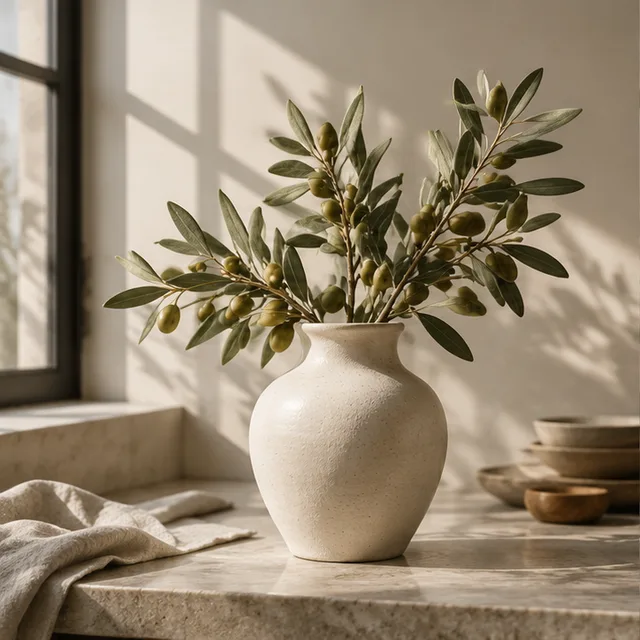
AI-made workflow illustration; not a measured before-and-after result.

  1. Original / idea ·

    01 · Original / idea

  2. Operation ·

    02 · Operation

  3. Illustrated result ·

    03 · Illustrated result