
How to Turn a UI Mockup into a Product Promo Video with Seedance 2.5
A practical Seedance 2.5 workflow for turning a UI mockup into a 15-second product promo video, with a shot plan, copy-ready prompt, and fidelity limits.
 Yix Team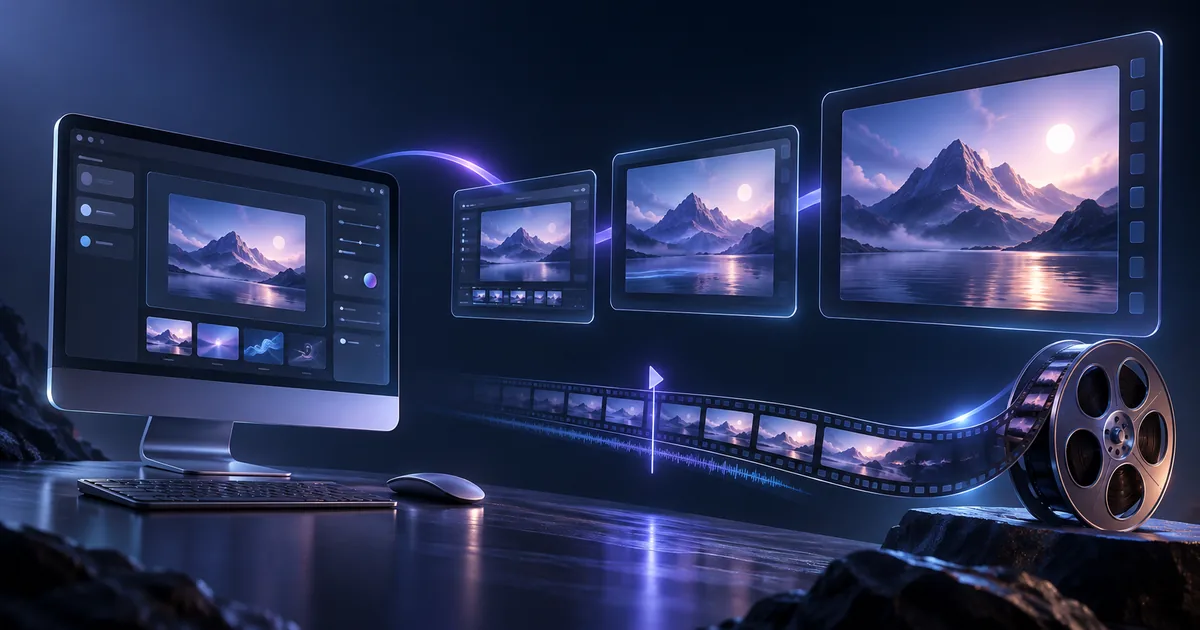
A polished UI mockup is already art-directed: it has a palette, hierarchy, spacing system, and a clear product story. Seedance 2.5 can turn that still design into a product promo video, but only if you direct motion around the interface instead of asking the model to redesign it.
This workflow produces a 15-second concept promo from one primary UI image and an optional end frame. It is useful for a launch teaser, social clip, pitch-deck opener, or visual prototype. It is not a substitute for a screen recording when the video must prove that a real feature works.
Want the prompt without rebuilding it by hand? Open the Prompt Lab, search for UI Product Promo, and load the worked SaaS dashboard example.
Start with the honest production choice
Before generating anything, decide what the viewer must believe.
- Use Seedance 2.5 for atmosphere, camera movement, transitions, product reveals, and conceptual interface motion.
- Use a real screen recording for clicks, exact navigation, data entry, settings, checkout, or any sequence that claims to demonstrate the working product.
- Combine both when necessary: open with a generated product reveal, cut to a screen recording for the actual task, then return to a generated end card.
This split avoids the most common failure in an AI UI promo: a beautiful shot that quietly invents controls, changes numbers, or turns a real workflow into fiction.
Prepare the UI mockup
The input should make the hierarchy easy to understand before motion begins.
- Export one clean hero state. Use a high-resolution PNG or WebP without cursor arrows, selection handles, comments, or design-tool chrome.
- Enlarge the important visual idea. A single chart, card, device frame, or product result should read clearly at phone-video size.
- Remove text the video cannot afford to corrupt. Keep small copy as a visual texture if needed, but plan to replace important headlines, prices, metrics, logos, and CTA text in post-production.
- Prepare an optional end frame. A simple brand-color field, centered product mark, and generous safe area give the generation a clean place to land.
For a vertical social ad, prepare the source at 9:16. For a website hero or launch deck, 16:9 is usually easier. Do not force a wide desktop dashboard into a narrow canvas and expect every card to survive.
Use a 15-second shot plan
A useful UI mockup product promo video needs one visible change per beat. Packing every feature into one generation makes both the interface and the story drift.
- 0–3 seconds — reveal. Bring the device or dashboard out of a simple background. Use a slow push or subtle orbit. Keep the overall layout locked.
- 3–6 seconds — first value point. Animate one chart, metric card, or product state. Everything else stays calm.
- 6–10 seconds — second value point. Move the camera to another region and use light, depth, or restrained parallax to bridge the transition.
- 10–13 seconds — result. Pull back to the full product and hold on a visibly completed state.
- 13–15 seconds — end frame. Leave clean space for a real brand line and CTA to be added after generation.
The timecodes are pacing instructions, not frame-accurate edit points. If an exact cut matters, make it in your editor.
Copy-ready Seedance 2.5 prompt
Replace the bracketed product details and map @Image1 and @Image2 to your uploaded assets.
[ASSET ROLES]
@Image1 is the primary SaaS product UI. Use its ink-black background, teal trend chart, left navigation, central metric cards, and right activity list. Do not rewrite small copy, numbers, or icons, and do not add controls.
@Image2 is the brand end frame. Use only its palette, logo position, and centered composition.

[15-SECOND SHOT PLAN]
0–3s: Reveal the dashboard from darkness with a slow push-in. Keep the overall layout stable.
3–6s: Draw the teal trend line from left to right while only the primary metric card lifts slightly.
6–10s: Truck toward the activity list and illuminate exactly three statuses in sequence without changing the card count.
10–13s: Pull back to the full dashboard and hold all charts and statuses in their completed state.
13–15s: Dissolve softly into @Image2, leaving central safe space for the product name and CTA in post.

[PROTECT]
Keep the dashboard silhouette, primary palette, four core regions, and information hierarchy. Do not invent pages, fabricate features, or generate random captions.

[SOUND]
Use low electronic ambience, two restrained interface cues, and a soft upward resolve. No voiceover.
For a first test, generate only 4–5 seconds around the reveal. Confirm the visual treatment before paying for the full shot.
What to protect and what to animate
The prompt works because it separates structural constraints from motion.
Protect these elements:
- product silhouette and device frame;
- primary palette and large color fields;
- location and count of core cards;
- main information hierarchy;
- start and end composition.
Animate these elements:
- one chart line or progress state;
- one card lift, glow, or depth change;
- camera push, truck, or restrained orbit;
- background light and subtle parallax;
- ambient sound and interface cues.
Avoid instructions such as “make every part dynamic” or “show all features.” They do not tell the model what must stay stable.
Fix the common failures
The text and numbers change
Treat generated typography as temporary. Remove critical copy from the source where possible, leave clear replacement areas, and overlay the real product name, metrics, pricing, and CTA in your editor. Seedance 2.5 cannot guarantee exact UI text, numbers, formulas, or icon shapes.
The model invents controls
State the card count and protected regions. Add “do not add controls, pages, panels, badges, or captions.” If the interface still mutates, reduce the shot to one camera move and one local animation.
The layout warps during a camera move
Replace aggressive 3D rotation with a slow push, shallow truck, or subtle parallax. A UI mockup is a flat graphic system; treating it like a physical object invites perspective distortion.
The promo looks impressive but proves nothing
Cut to a screen recording for the real workflow. Show the actual click path, input, processing state, and result. Use the generated material as packaging, not evidence.
The ending has unusable brand text
Use a clean end-frame image and ask only for composition and color. Add the logo, legal line, URL, and CTA in post-production.
Use this workflow on Yix
The full Seedance 2.5 model supports text, image, video, and audio references with native output up to 30 seconds. Different products expose different parts of that workflow.
Use the Prompt Lab to prepare the production brief, then select Seedance 2.5 in the Yix video generator for text-to-video or first-frame image-to-video. The current Yix interface supports one starting image, 480p/720p output, synchronized audio, and 5–30 second clips; larger multimodal reference packs are not yet available.
For broader model capabilities and the current Yix feature set, read the Seedance 2.5 release guide.
Seedance, Dreamina, and ByteDance are trademarks of their respective owners. Yix is not affiliated with them.