
LightCraft: choose the official RAW editor and plan a first photo edit
Find the official LightCraft RAW editor, check camera and format support, and plan a small non-destructive photo workflow before moving your library.
 Yix Team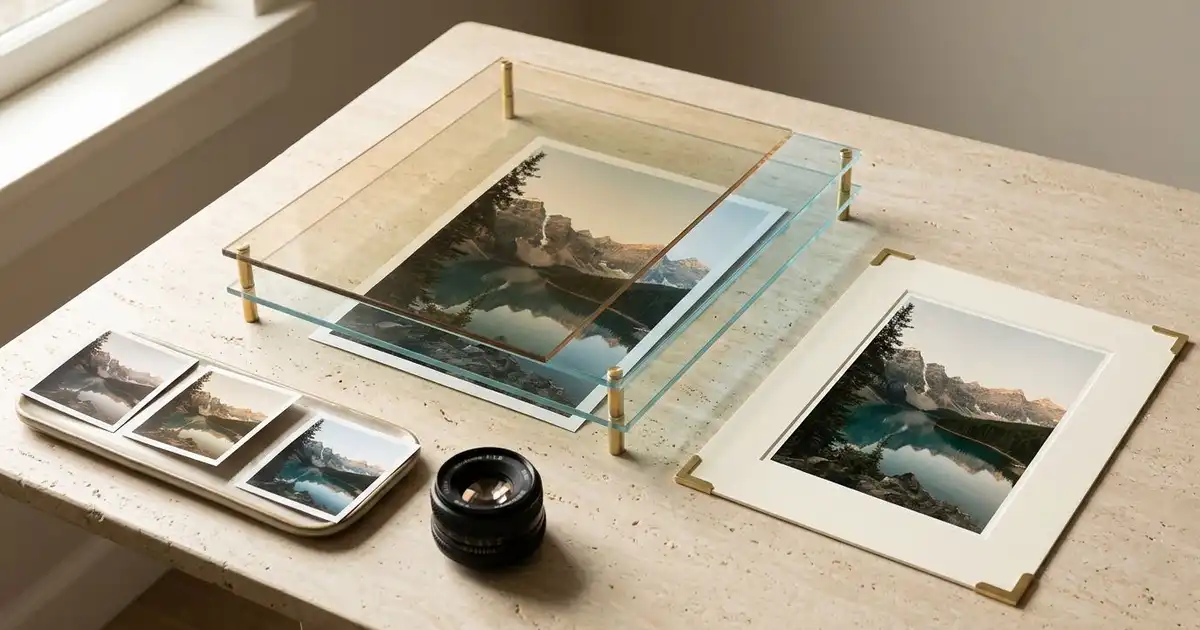
LightCraft is the ArtCraft team's open-source photo library and RAW developer. This guide concerns storytold/lightcraft, the application linked from the official product page. It is for organizing and developing photographs. Other products and lighting businesses share the name, so check the publisher before choosing a download.
We checked the project's documentation on October 11, 2026. GitHub's latest release was v0.6.0, while the product page still displayed v0.4.0. The repository describes the application as alpha. We have not installed it or processed a camera file in it; the steps below are a small evaluation plan, not a hands-on review or a claim that it can replace your current editor.
Cover: an Imagen-generated illustration of preserving an original photograph while adjusting light and color. It is not a LightCraft screenshot or an example export.
Find the right package first
The v0.6.0 release provides prebuilt packages. A source archive is not an installer, and the headless command-line tool is not the desktop interface. Choose the application build for your system and keep its version number in your evaluation notes. The product page also offers a WebAssembly build for self-hosting; that does not establish that a ready-to-use browser service is available.
Building from source is a separate developer route. The current README requires Rust 1.95 or newer, whereas the product page still says 1.90. Follow the repository requirements for the revision you build. Most people evaluating a photo editor should start by checking whether a suitable prebuilt package exists.
Check the camera, not just the file extension
A list containing DNG, CR2, CR3, ARW, NEF or RAF is only the start of a compatibility check. Camera bodies can write different compression variants inside the same extension. The project's RAW parity document separates sensor decoding verified on real files, unverified decoder paths, embedded-preview fallback and unsupported cases.
That distinction matters when a photograph appears to open successfully. An embedded JPEG preview can look convincing without being the underlying sensor data. The documented gaps include compressed Olympus/OM ORF files, Nikon High Efficiency variants and some Canon CR3 variants. Check the current entry for your camera and shooting mode rather than treating the entire format family as supported.
Create a small test folder using copies of your own files. Include an ordinary daylight frame, a high-contrast scene and a low-light frame from the camera and settings you actually use. If you change RAW compression modes between jobs, include each mode. Keep the untouched originals elsewhere and record the file names so you can compare the same images later.
| Test photograph | What to look for | Why it matters |
|---|---|---|
| Daylight scene with a neutral object | Color cast and white balance | A plausible preview can still start with an unsuitable color interpretation |
| Bright window and shaded interior | Highlight and shadow behavior | Opening a file does not prove useful recoverable detail |
| Low-light detail | Texture, noise and focus | A reduced preview can hide the detail you need to judge |
These are suggested evaluation subjects, not images we developed in LightCraft. The project also documents limits in full-detail previewing, so confirm that the view you use for focus judgments actually shows the necessary detail. Compare an exported crop if the display leaves that uncertain.
Make a small, reversible edit
The official documentation describes a non-destructive development pipeline: adjustments are stored separately from the original pixels. That is a design claim, not a substitute for a backup. Before importing a valuable library, work with the copied test folder and check the import action; adding, copying and moving files have different consequences for where the originals live.
For a first edit, use one landscape frame. Adjust exposure, then white balance, then the crop. Inspect the sky and dark foliage after each change. Keep one version close to the original and another with the intended treatment, so you can distinguish a deliberate look from an unexpected color shift.
The README documents ratings, flags, albums, curves, masks and presets. You do not need to exercise every feature to decide whether the basic workflow fits. Start with a few selects and one export. For local corrections, inspect mask boundaries at the subject edge; the gap list explains that several named AI masks use heuristics and that other AI features have unfinished dependencies. A button's name alone does not establish mature segmentation or denoising.
Keep edits, originals and delivery files separate
A JPEG for sharing is a delivery copy. Your RAW file, catalog information and sidecar or preset settings serve different purposes. LightCraft documents XMP sidecars and its own .lcpreset files, but do not assume that another editor will reproduce the same appearance from transferred settings. The project explicitly records differences in rendering and camera color.
Export one small test before committing a whole shoot. Check the output folder, dimensions and intended color settings, then open the saved file in a separate viewer. Look at the crop, fine detail and highlight transitions. If you need a particular delivery size, inspect the actual file dimensions rather than relying on the preview.
Also close and reopen the test catalog or project state according to the application's instructions. Confirm that your chosen image and adjustments are still available. Archive the original and the information needed to recover the edit; keeping only the final JPEG makes later revisions much harder.
Decide whether the current version fits your work
LightCraft's known gaps include camera-color calibration, RAW variants, render fidelity and viewing detail. These are central photography tasks. Treat broad Lightroom comparisons as a starting point for checking your own needs, not proof of equivalent results.
Language support is another practical check. A user filed issue #878 about garbled Simplified Chinese. That report does not establish that every build has the problem. The current README says official releases include the project's CJK fonts; custom builds require the documented font setup. Check menus, folder names and any text in your output on the package you use.
Choose LightCraft for further evaluation when your camera files decode correctly, the color and export checks meet your needs, and the early-stage limitations are acceptable. Keep your existing workflow available while testing. If your task is painting, compositing or layer-based retouching after development, read the separate PhotoCraft guide. The ArtCraft overview explains how the applications fit together. Yix does not provide native RAW development, so this article has no RAW generation shortcut.