
Get Craft Apps: ArtCraft Launcher & Download Guide
Find ArtCraft apps and official downloads for Windows, Mac and Linux. Learn which editor to choose and how ArtCraft Launcher works.
 Yix Team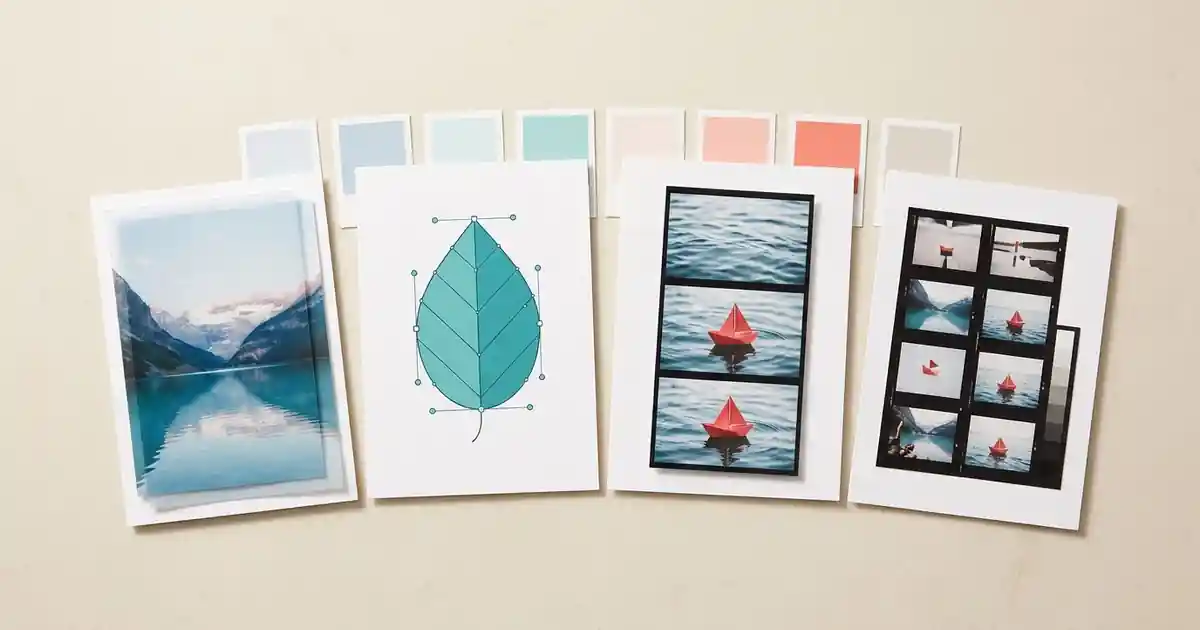
Get Craft Apps through the official ArtCraft directory or ArtCraft Launcher. This guide helps you choose an editor and find the Windows, Mac or Linux installer for your computer. If you used the community GetCraft app, GetCraft now directs users to ArtCraft Launcher, which the ArtCraft team maintains for installing and updating the suite.
This guide covers the twelve-application creative suite. For ArtCraft's AI scene-building studio, use the separate ArtCraft GitHub guide. Similar names do not mean the studio, launcher and individual editors are the same download.
Cover: original Imagen-generated concept artwork representing image layers, vector paths, a video sequence and a photo contact sheet. It is not a screenshot of the apps.
What is in the suite?
On October 12, 2026, the official directory listed these twelve Rust applications as free and open source. Its status labels were early alpha or in development. The table is a selection map, not a claim that every application is ready to replace an established production workflow.
| Your main task | App to investigate |
|---|---|
| Edit a photograph or layered pixel image | PhotoCraft |
| Draw paths, icons or scalable illustrations | VectorCraft |
| Assemble and trim video clips | FilmCraft |
| Organize photographs and develop RAW files | LightCraft |
| Work with PDF documents | PdfCraft |
| Create motion graphics or visual effects | EffectCraft |
| Lay out pages for publishing | DesignCraft |
| Write and format documents | WordCraft |
| Record, edit or mix audio | SoundCraft |
| Make slide presentations | DeckCraft |
| Draft or work on CAD designs | CADCraft |
| Work with spreadsheets and data | GridCraft |
Choose the output before installing several apps
Start with one deliverable. A retouched product photograph points toward PhotoCraft; an editable emblem points toward VectorCraft. A PNG that looks like a logo still contains pixels, so ask whether the recipient needs a flat picture or editable paths. The PhotoCraft versus VectorCraft guide examines that handoff in more detail.
Choose FilmCraft when the work is a sequence of existing clips with cuts and audio. An AI-generated shot is source material for editing, not an assembled project. Choose LightCraft when your starting point is a camera library and RAW development. Keep camera originals separate from exported photographs.
For example, a small shop making a product launch could develop the camera photograph, retouch the chosen image, draw a vector emblem and then assemble a short video. That is four different jobs. Start with the one you need today; a shared family name does not establish that files move between the apps with every layer, effect and font intact.
We reviewed the official pages and release metadata for this guide. We did not install the desktop suite, run an editing benchmark or verify its advertised performance figures.
Launcher or standalone download?
The Launcher README describes a central catalog that selects builds for the operating system and processor, installs applications, checks release checksums and manages updates. Use it when you want one place to see installed apps and available versions. It is itself marked early alpha.
If you only want one editor, its official page also offers standalone packages. For example, PhotoCraft's download section separates Launcher installation from individual platform downloads. This is useful when you want to evaluate one program without adding the suite manager.
At our October 12 check, GitHub's latest Launcher release was v0.3.2, while the website's app pages still displayed v0.2.1. Follow the current release link and read its notes; do not assume a version shown in an older screenshot or article is still current.
Match the download to your computer
Open the release's Assets list and check both the operating system and CPU architecture. The current Launcher release includes a universal macOS DMG, Windows installers and portable ZIPs for several architectures, and Linux packages in multiple formats. The README explains the platform requirements and package choices.
For a typical Intel or AMD 64-bit Windows PC, look for windows-x64; Windows on Arm uses windows-arm64. The universal macOS package covers Apple silicon and Intel. On Linux, match the architecture as well as the package format your distribution uses. Do not select a file merely because it is the first ZIP in the list.
Distinguish an installer, a portable application, a command-line tool and source code. GitHub's source-code archive is a checkout snapshot, not a ready desktop installer. A web-build archive may require hosting or setup; it is not proof that the main ArtCraft web studio runs every editor in the suite.
Keep the release page and filename with your evaluation notes. If installation fails, record the app, version, operating system, architecture and exact message before consulting the project's issue tracker. A report that only says “Craft will not open” leaves out which of several programs failed. There is no need to install or download the entire family to diagnose one package.
Evaluate a copy of a real file
Early builds deserve a small, relevant trial. In a graphic-design community discussion, users reported differences between operating systems and gaps in familiar interactions. Those are individual reports, not failures we reproduced or a verdict on the current release.
Make a copy of a representative file. Open it, perform one required edit, save under a new name, close and reopen it. Then export the format you actually need and inspect it in the destination application. Check text, transparency and layers for design work; playback, audio and the exported file for video; camera support and output appearance for RAW photographs. Keep your existing workflow until the needed handoff works on your files.
Only need one AI photo edit?
If your immediate task is changing a background or lighting from a written instruction, Yix offers an independent browser alternative. It does not run Crafting Apps, install the Launcher or provide their native layered, vector, video or RAW projects.
Wait for the reference preview, sign in if requested, and verify the selected model before submitting. Opening the card does not generate an image. Compare the result with your original and download the version you want to keep; use an appropriate desktop editor when editable paths, layers or a timeline are part of the deliverable.