
FilmCraft: find the official editor and plan your first timeline
Find the official FilmCraft release, choose the right desktop package, organize generated clips, and check timeline edits and exports before a larger project.
 Yix Team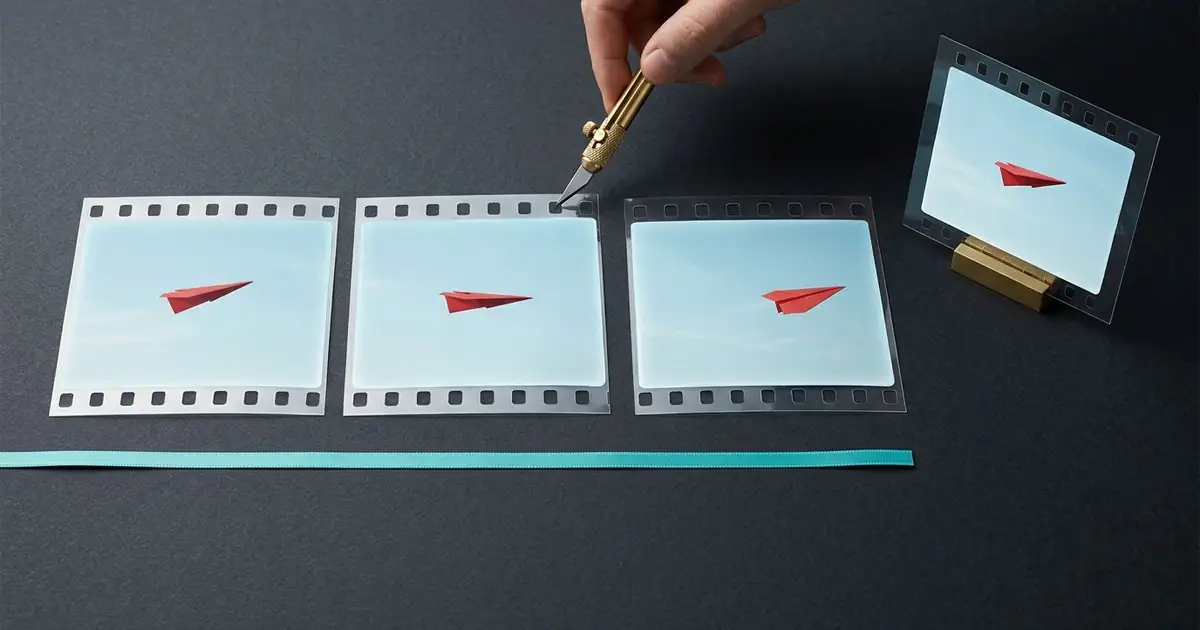
FilmCraft is the ArtCraft team's open-source video editor. Its official repository is storytold/filmcraft, linked from the FilmCraft product page. It is a desktop editing application with a timeline, not a prompt-to-video model. If you already have generated clips, its role is to arrange and trim that footage into an edit.
We checked the official documentation and release files on October 11, 2026. The latest GitHub release was v0.6.0, published that day; the product page still displayed v0.4.0. Use the release page to check the package version you are actually selecting. We did not install the application or test a rendered video, so the workflow below is a preparation and verification plan, not a performance review.
Cover: an Imagen-generated illustration of film frames and trimming. It is not a FilmCraft screenshot or an exported project.
Start with the official release
The v0.6.0 release lists builds for several operating systems and processor types. Match both before downloading. On a Mac, check whether you have Apple silicon or an Intel processor; on Windows and Linux, read the architecture in the asset name rather than choosing the first file in a long list.
Prebuilt packages and source archives serve different users. GitHub's automatically supplied source ZIP is code, not a normal installer. You do not need to start by installing Rust when an appropriate prebuilt package is available. Follow the instructions attached to the package you choose, and keep the version number with your project notes.
Prepare a small set of clips
Begin with footage you can afford to experiment with. Copy three short clips into a working folder and leave the originals untouched. Give them useful names such as 01-wide, 02-detail and 03-ending; keep alternate generations in a separate folder so an almost-identical take does not slip into the edit unnoticed.
For each clip, note its frame size, frame rate, duration and whether it contains usable audio. A portrait clip and a landscape clip need different framing decisions even when both show the same subject. Decide the delivery shape first. Cropping everything to fill the frame can remove the detail that made a generated shot worth keeping.
A simple planning example is a paper airplane sequence:
| Shot | Intended role | First thing to inspect |
|---|---|---|
| A wide view of the airplane | Establish the scene | Subject position and spare space around it |
| A closer view during movement | Show the action | Direction of travel and continuity at the cut |
| A final settled frame | End the sequence | Enough stable time for the viewer to read the ending |
This is an original edit plan, not footage we produced in FilmCraft. The same approach works with product clips: select the useful action inside each take before adding transitions or titles. Keep a little extra footage on both sides of a proposed cut so you have room to adjust it.
Understand the timeline before trimming
FilmCraft's editing documentation in the README describes source and program monitors, media bins, multiple tracks, In/Out points, and insert or overwrite edits. In practical terms, decide which part of a source clip you want, then decide where it belongs in the sequence.
The distinction between trim operations matters. A ripple edit changes a boundary and moves later material to close the resulting gap. A roll changes the boundary between adjacent shots while retaining their combined duration. For a first sequence, make one change, inspect the cut, then undo it once so you know how to recover before continuing.
Watch the picture and sound together. A cut that looks clean may remove the beginning of a word or leave a sound after its visual source has disappeared. Recheck the next edit whenever a duration changes. Save a new project version before an experiment that changes many clips at once.
Separate the project from the exported video
The project-file documentation describes FilmCraft's .fcproj project format and recovery behavior. A project file preserves editing decisions; a rendered video is the viewing copy. Keep the project and the source media together in your archive, and avoid assuming that copying one file has collected every referenced clip.
This is also a real workflow concern in the community: issue #940 requests user-controlled storage for project versions and media-aware relinking. It is a feature request, not evidence that the requested cloud workflow is already available or that we reproduced a failure.
For a first export check, choose a short sequence containing one cut and any audio you need. The official documentation lists H.264 MP4 with AAC among the export options. Before rendering, inspect the range, frame size and frame rate. Then open the saved output in a separate player and check its beginning, the cut, audio sync and final frame. Inspect the file you will deliver, not only the editor's preview.
If the small test passes on your machine, increase the project gradually. Keep the tested settings with the output. A successful short export does not establish that every codec, effect, long timeline or other computer will behave the same way.
Check the alpha boundaries before switching projects
The project's current status section calls FilmCraft alpha. Its gap list is more useful for deciding whether to migrate than a broad “Premiere alternative” label. Check the specific formats, effects and handoff you depend on.
The README says native Premiere .prproj files cannot yet be opened directly, and points to interchange formats instead. An interchange route is something to test with a copy of a representative sequence, not a guarantee that every title, effect or audio setting transfers unchanged. Keep your existing editor available until the parts of your workflow that matter have been checked.
FilmCraft also documents agent control through its command interface and MCP server. That is automation of the editor; it does not make FilmCraft a Yix generation model or establish that an agent has tested your project. This guide does not configure that connection.
For source footage, Yix's video workspace is a separate creation step. Bring downloaded clips into your chosen editor after checking them. If you need to prepare still images first, the PhotoCraft repository guide covers that different application; the ArtCraft overview explains the broader product family.
For replacing a character inside existing footage before editing, see the MiniMax H3 Recast input and review guide.