
Upscale image: choose a method and the right size
Learn when to upscale an image, how 2× and 4× change its dimensions, and when a new export is better. Choose a method for photos, graphics or printing.
 Yix Team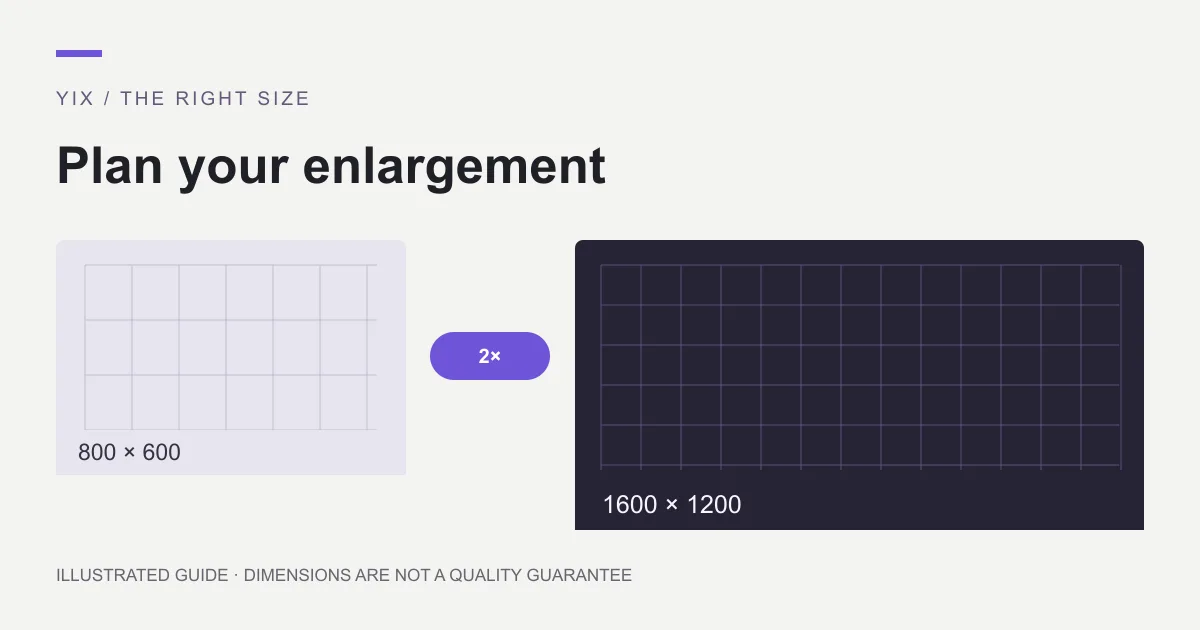
To upscale an image, increase its width and height in pixels, then check whether the larger copy still represents the original accurately. AI can make a small photo more usable at a larger size, but it cannot guarantee that reconstructed details are true. Start with the largest original file you have and a specific destination size.
For an existing photograph, Yix Image Upscaler provides 2× and 4× enlargement. It requires sign-in and credits; upload one JPG, PNG or WebP up to 10 MB and review the displayed cost before starting. The result downloads as PNG. If you need a no-cost method, read the free upscaling guide first.
Decide what the larger file needs to do
A profile picture, a presentation background and a print have different requirements. Find the destination's pixel dimensions before choosing a multiplier. A larger file is useful only if those extra pixels solve a real delivery problem.
Suppose your source is 800 × 600 pixels. At 2×, the output is 1600 × 1200; at 4×, it is 3200 × 2400. The proportions stay 4:3. Neither output becomes a widescreen image. A 16:9 layout needs a crop, padding or a different composition in addition to enlargement.
For print, divide pixel dimensions by the printer's requested pixels per inch. A 2400-pixel edge at 300 ppi is 8 inches. That calculation describes the available print size, not the quality of the photographed detail. Ask the print service for its requirements before preparing a large order.
Changing only the resolution label from 72 to 300 ppi does not create pixels. Adobe's image size and resampling explanation distinguishes pixel dimensions from print density. Check the width and height numbers, not just the resolution field.
Match the method to the source
For a photograph, AI enlargement is worth comparing with an ordinary resize. Look for natural edges and consistent texture. Fine hair, grass and fabric deserve close inspection because a convincing pattern can still differ from the source.
For a logo, chart or page of text, return to the editable document when possible. Export the vector artwork or document at the required dimensions. Upscaling a small screenshot adds an unnecessary reconstruction step and can alter lettering. If a client supplied only a tiny logo, request the SVG, PDF or original design file before trying to repair the screenshot.
For pixel art, use a method that preserves the intended grid. Adobe lists nearest-neighbor resizing for pixel art and hard-edged graphics. An integer scale keeps each original pixel as a uniform block; a photo-oriented enhancement can smooth away deliberate details.
For a badly blurred image, a larger output may still be blurred or may contain guessed features. Look for another frame, a better scan or the original camera file. Do not rely on AI reconstruction to establish a person's identity or read an uncertain serial number.
Prepare the original before uploading
Keep an untouched copy. Download the actual image instead of taking a screenshot of its preview, and avoid sending it through a messaging app that compresses the file. If you must crop, calculate the size of the cropped area: a 600-pixel crop from a large photo is still a 600-pixel source.
Use an image you have permission to process. For confidential material, check whether uploading it to an online service is appropriate; a desktop workflow may fit better. Yix's privacy policy explains its handling of submitted information. Removing a visible name is not a substitute for reviewing the whole image.
Do essential composition work before enlargement. Leave final sharpening and delivery compression until you know how the image will be displayed. Repeatedly saving a JPEG while trying different settings can make comparison harder, so retain a clean working copy.
Judge the result in its actual destination
Open the downloaded file and confirm its dimensions. Compare it with the source at the same displayed size, then inspect the output at 100%. A zoomed-out preview can conceal changed letters or smeared detail.
For a product photo, verify the label, seams, buttons and silhouette. For a portrait, compare the eyes, teeth and recognizable marks. Then place the image into the actual slide, product listing or print layout. If it looks worse at the size people will see, keep the original or choose a smaller enlargement.
Save the accepted result under a different filename. Keep the original beside it so later edits do not begin with an already processed copy. When a site rejects a PNG because of file size, export a delivery copy in a supported format and inspect that copy again.
Questions before you start
Does a larger file prove better quality?
No. More pixels can make a file fit a layout, while the content remains soft or inaccurate. Compare the details that matter for your use, rather than judging by file size.
Can enlargement make tiny text readable?
It cannot reliably recover letters that are missing from the source. A Photoshop community question about illegible text illustrates this problem. Obtain the original document or re-export it; treat reconstructed characters as uncertain.
Which guide should I follow next?
Use the AI workflow for upload-to-download steps, the quality checklist to review a result, or the 4K size guide when the destination has exact dimensions.