
Upscale image with AI: an upload-to-download workflow
Follow a practical AI image upscaling workflow: prepare one photo, choose 2× or 4×, review the credit quote, and inspect the downloaded PNG before use.
 Yix Team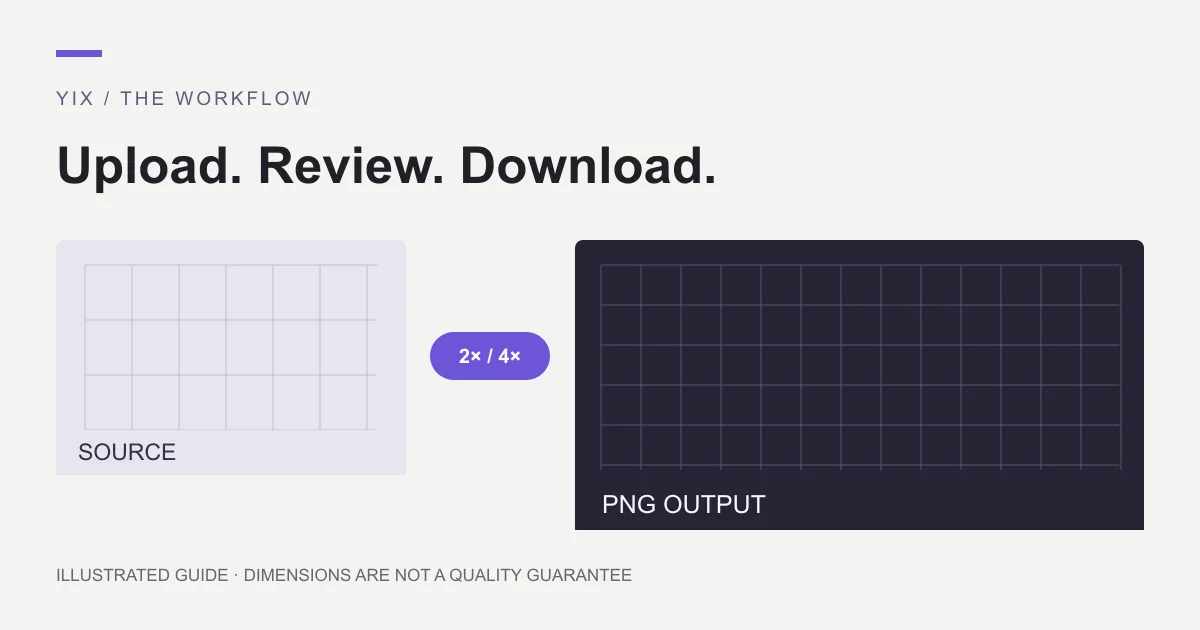
To upscale an image with AI on Yix, sign in, upload one image, choose 2× or 4×, review the credit quote and start processing. Download the resulting PNG and check it against the original before using it. You do not need a text prompt for this workflow.
The image upscaler accepts JPG, PNG and WebP files up to 10 MB. It enlarges an existing image; it does not provide the same controls as a photo editor that replaces objects or changes the composition. This walkthrough focuses on completing one enlargement without losing track of the source, settings or output.
1. Prepare the file and destination
Save the original somewhere separate from your output folder. Use the original camera download or design export when available. A screenshot of the same picture usually contains fewer useful pixels and may include interface elements you never intended to enlarge.
Write down the current dimensions and the target. If a 1200 × 800 image needs to fill a 2400 × 1600 slot, 2× matches it. If it needs a 4000-pixel-wide layout, 4× gives a 4800-pixel width that you can later resize to fit. These are dimension calculations, not promises about recovered detail.
Finish the crop before choosing the factor. A close crop changes the available width and height, so calculate from the cropped file. Do not stretch a portrait into a landscape slot; preserve its proportions and decide where cropping or padding belongs.
Use only images you have permission to process. For private or confidential photos, review the privacy policy before uploading. If online processing does not fit your needs, the free desktop guide explains a different route.
2. Sign in and upload one image
Open the tool and sign in if prompted. Use the image picker or drop a supported file into the upload area. Wait until the source preview appears before choosing the final settings or starting a task.
If a file is rejected, check its real format and size. Renaming a HEIC file to end in .jpg does not convert it. Export an actual JPG, PNG or WebP from your photo application, keep the original, and use the converted copy.
When the upload is complete, confirm that the preview is the intended image. Check orientation and crop. Replacing a mistaken source before processing avoids paying for an output you did not want.
3. Choose the smallest useful factor
Choose 2× when doubling both dimensions meets the target. Choose 4× when you need four times the width and height. The larger option produces sixteen times the source pixel count, compared with four times at 2×, so inspect the quote after selecting it.
The amount shown in the tool depends on the image and settings. Read the current quote rather than relying on a fixed cost from an old tutorial. If your balance is insufficient, check the pricing page and choose whether to add credits. You can leave without starting a task.
Yix's factor selector controls size. It is not a creativity slider, and this page does not offer a prompt field for instructing the upscaler to preserve a face or rewrite lettering. If exact text matters, prepare that text in the original editable document instead.
4. Start once and inspect the completed result
Start the task after the quote is ready. While it processes, avoid repeatedly clicking the action. If the page is interrupted, check your creations for an existing result before starting again.
When the result appears, use the download action to save the PNG. Open that saved file locally and confirm the dimensions. Do not substitute a screenshot of the preview: that discards the full-size output you just created.
Compare the source and output at equal displayed size, then inspect the larger file at 100%. Check high-contrast edges and any important lettering. For a product listing, verify that the label and shape still match the product; for a portrait, compare identity rather than simply preferring smoother skin.
A community question about a profile illustration looking worse after upscaling captures a useful warning: a completed task is not automatically an improvement. Use the quality checklist to decide whether to keep it.
5. Prepare the delivery copy
Keep the downloaded PNG as a working copy. If your destination requires another format or a smaller file, export a separate delivery version and check that version too. File compression and resizing after the upscale can change the appearance again.
Name the files so the original remains obvious: product-original, product-2x and product-delivery are enough. If you need another attempt, return to the original instead of repeatedly enlarging an already processed output.
Workflow questions
Should I start with 4× every time?
No. Use the factor that meets your actual target and inspect the result. A larger output costs storage and may require more credits without improving the intended display.
Does 4× automatically mean 4K?
No. The result depends on the starting dimensions. A 960 × 540 source at 4× reaches 3840 × 2160, while a square source stays square. The 4K workflow explains the crop and size calculations.
What if the result looks sharper but wrong?
Keep the original. Check the feature that changed and try a smaller factor or another method only if it fits the task. For exact logos or text, re-exporting the source artwork is preferable to accepting a convincing reconstruction.