
Upscale image to 4K: calculate size and crop correctly
Make a 3840 × 2160 image by checking source dimensions, aspect ratio and the right scale factor. Learn when 2× or 4× works and when cropping is required.
 Yix Team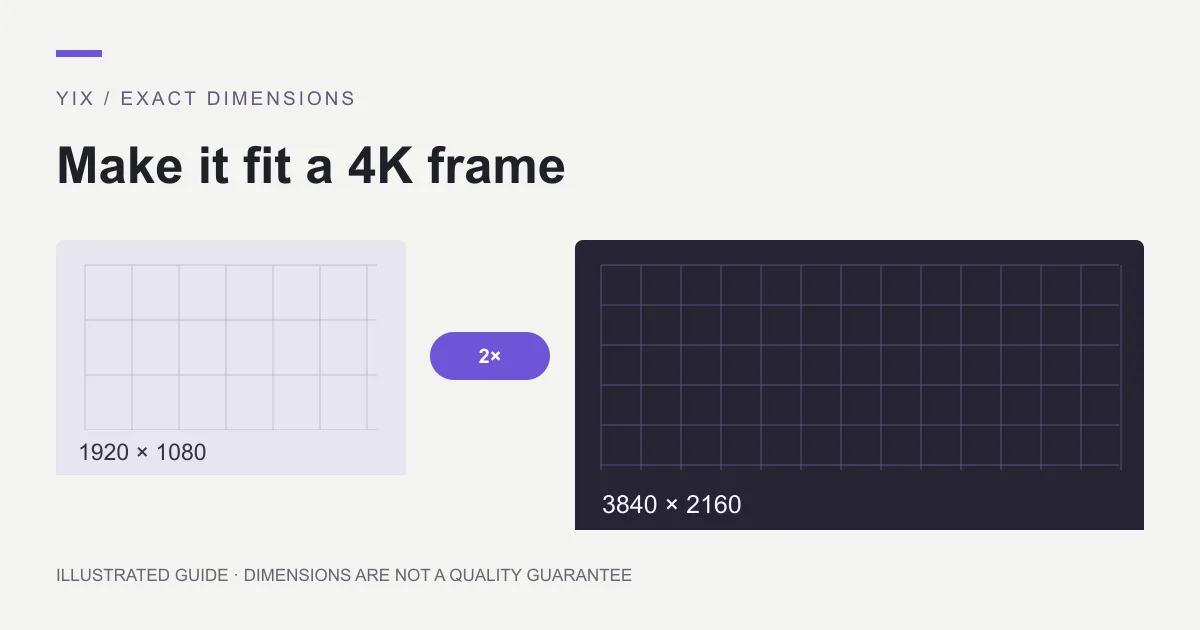
To upscale an image to 4K for a UHD screen, target 3840 × 2160 pixels. A 1920 × 1080 source reaches that size at 2×; a 960 × 540 source reaches it at 4×. Both are already 16:9. Images with another aspect ratio need cropping or padding as well as enlargement.
Yix's image upscaler offers factors, not a universal 4K preset. It keeps the source proportions, requires sign-in and credits, accepts one JPG, PNG or WebP up to 10 MB, and provides a PNG download. Check the actual dimensions after processing rather than assuming that selecting 4× means 4K.
Confirm which 4K specification you need
This guide uses 3840 × 2160 for a landscape UHD image. Some production specifications use 4096 × 2160 instead. Ask for the actual pixel dimensions if a client simply writes “4K,” especially when delivering for cinema, signage or a custom display.
A vertical asset might need 2160 × 3840. A square asset with a 4096-pixel edge is a different shape again. Those targets cannot be substituted for each other merely because their names contain a similar number.
Also confirm whether the destination fills the screen, fits the entire image with borders, or crops automatically. A wallpaper that hides part of a person's face under a crop is not fixed by adding more pixels. Composition belongs in the delivery decision.
Calculate from width and height
For proportional enlargement, multiply both dimensions by the same factor. To fill a target rectangle without empty borders, calculate the width ratio and height ratio, then use the larger ratio before cropping.
For example, take a 1600 × 1200 photo. The width ratio for UHD is 3840 ÷ 1600 = 2.4. The height ratio is 2160 ÷ 1200 = 1.8. Filling the frame requires at least 2.4×, followed by a vertical crop. A 2× output is only 3200 pixels wide, so it does not fill UHD at native size.
With Yix's 4× option, that source becomes 6400 × 4800. In your editor, crop to 16:9 while protecting the subject, then resize to 3840 × 2160. You can also choose the 16:9 crop before upscaling: a 1600 × 900 crop at 4× becomes 6400 × 3600, which can be reduced proportionally to UHD. These are worked dimension examples; they do not demonstrate a particular image's visual quality.
If keeping the whole 4:3 frame matters more than filling the screen, fit it into a 3840 × 2160 canvas instead. At 2880 × 2160, it leaves 480 pixels of space on each side. Choose the border treatment deliberately rather than stretching the image horizontally.
When the source is too small
A 640 × 360 image at 4× reaches 2560 × 1440. That is short of 3840 × 2160. You would need a 6× enlargement from the original to meet that target directly, which is outside Yix's single-pass 2×/4× choices.
Look for a larger source first. You could resize a processed image further in another editor, but that still cannot establish authentic details missing from the original. Do not mistake an extra resize for an improvement in source quality.
A square source at 4× remains square. A 1024 × 1024 source becomes 4096 × 4096, not a finished UHD wallpaper. Crop or pad based on the composition. If cropping removes the useful subject, choose a different source or a layout that preserves the frame.
Keep print settings out of the pixel calculation
Changing a file's ppi label does not turn it into 4K. Adobe's image-size documentation explains that resizing without resampling retains pixel dimensions. Screen delivery depends on the actual width and height.
If the destination is print, request physical size and print density instead of stopping at a 4K label. A 3840-pixel edge at 300 ppi corresponds to 12.8 inches. The suitability of that print still depends on the source and viewing conditions.
Export and verify the final file
Open the downloaded PNG and check its dimensions. Complete the crop or padding in an editor if needed, export the exact target, and inspect that exported file. Verify that circles remain circular and faces have not been stretched.
Review text, faces and repeated textures at 100%, then display the image in the intended application. If it is a wallpaper, check the actual screen fit. If it is a presentation background, place it in the slide and inspect the regions behind titles and controls.
The quality review guide covers problems that size checks cannot catch. Preserve the original and the final delivery copy separately.
4K questions
Is 4× always better than 2× for 4K?
No. A 1920 × 1080 source already reaches UHD at 2×. Using 4× creates a larger intermediate file without changing the delivery requirement.
Can I make a portrait fill a landscape 4K screen?
Yes, through cropping or a designed background, but proportional upscaling alone cannot change the shape. Do not stretch the face to fill the frame.
What if the client rejects the file even though it says 4K?
Check the exact width, height, format, file-size limit and crop requirements. Send the exported file rather than a screenshot or preview link. If necessary, use the basic upscaling guide to choose a different source or method.