
Prompt Seen: copy photo prompts for your own pictures
Copy four original Prompt Seen photo-editing prompts for portraits, couples and 3D looks. Adapt them to your photo, then use the Yix editor with credits.
 Yix Team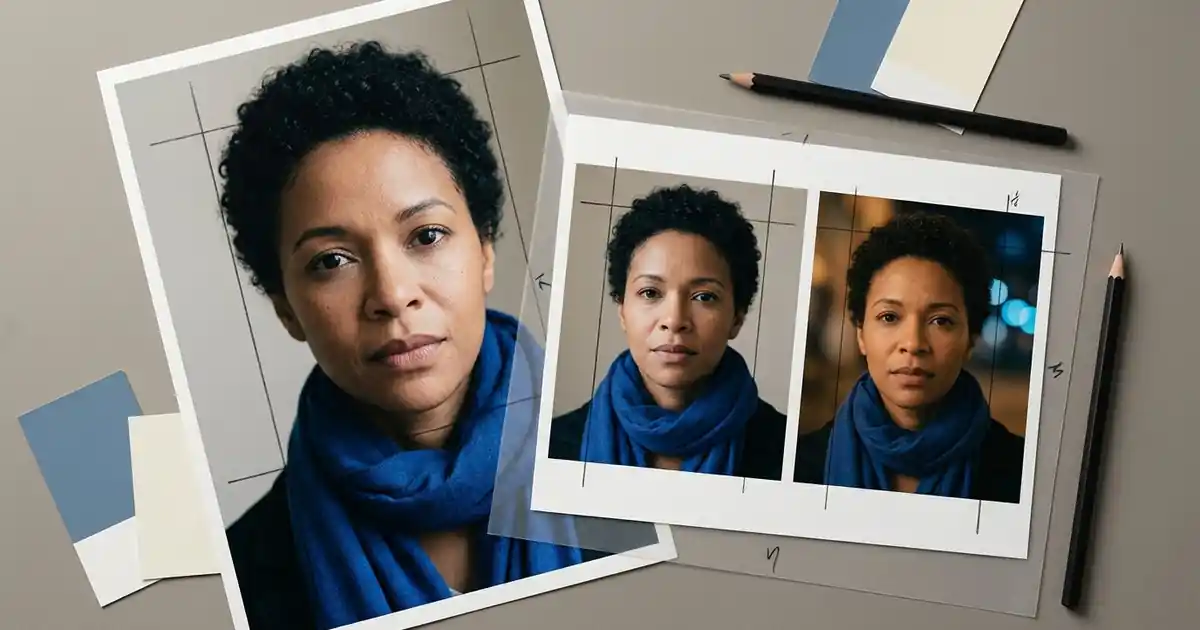
Looking for a Prompt Seen photo prompt? Copy one of the four original briefs below, adjust it to match your photograph, and paste it into an image editor with your photo. Reading and copying this collection is free and needs no account. Generating in Yix requires sign-in and credits; check the displayed cost before submitting.
The name appears on several prompt sites. PromptSeen.com publishes photo prompts, video prompts and editing templates; PromptSeen.io describes a library whose prompts you take into another generator. This is Yix's independent collection, with no affiliation to those sites. The examples here are original, untested starting instructions, not copies of their libraries or promises of identical results.
Choose a prompt below, or browse the wider Prompt Lab.
Cover: AI-generated editorial artwork reused from our photo-prompt guide. It illustrates portrait planning; it is not an output from the four prompts below.
Four copy-ready photo prompts
Choose by the photograph you already have. A portrait is the easiest starting point; a couple brief needs both people in the same image. The English text in each card can be copied as written, but any mismatched details should be changed before you generate.
1. A rooftop portrait at dusk
Use a clear photograph of one adult. This brief changes the surroundings and lighting while keeping the outfit and pose. It works as a starting point for a profile portrait without inventing a full outfit from a tightly cropped selfie.
Edit the supplied photo of one adult into a rooftop portrait just after sunset. Keep the person's facial proportions, skin tone, hairstyle, expression, clothing and existing pose. Retain the original crop. Replace the background with a distant city skyline, softly out of focus. Add a faint peach glow behind the subject and soft neutral light on the face. Keep realistic skin detail and gentle shadows. No extra people, jewellery, lettering, logos or rain.
If you want a square avatar, choose a square output setting in the editor and leave enough space around the head. Do not also request a full-body shot: that asks the editor to invent areas outside your source photograph.
2. A window-lit saree portrait
Start with a photo in which the person already wears the saree you want to keep. This brief is for changing the setting and light. It does not attempt a wardrobe replacement, and the cloth should be visible enough to provide a useful reference.
Edit the supplied photo of one adult wearing a saree. Preserve the face, skin tone, hairstyle, expression, pose and the existing saree design and colour. Keep the original framing. Place the person beside a tall window with an off-white curtain and a plain terracotta wall. Use soft morning light from the window; retain visible fabric weave and natural skin texture. Keep the existing jewellery without adding pieces. Do not invent a new outfit, change facial features or add text.
For another outfit, replace both mentions of the saree with the actual garment. If the fabric colour drifts, reduce the warm light in your next instruction rather than adding several contradictory colour descriptions.
3. A couple portrait in a quiet garden
Use one photograph containing two consenting adults, with both faces visible. The linked Yix editor accepts one reference image. Two separate selfies need a prepared combined reference or a different workflow that explicitly accepts multiple images.
Edit the supplied photograph of two adults into a garden portrait. Keep both people in their original left and right positions. Preserve each person's face, skin tone, hair, clothing, relative height, expression and existing hand positions. Retain the original waist-up crop. Replace the background with softly blurred green foliage and a pale stone wall. Use even, overcast daylight on both faces. Keep exactly two people, distinct arms and natural hands. Do not add an embrace, swap clothing or introduce lettering.
Change “waist-up” if your source uses another crop. Avoid requesting new hand positions in the first attempt: preserve the existing pose, check both faces, then decide whether a second edit is worthwhile.
4. A handmade 3D clay character
Choose this when you want a stylized likeness rather than a realistic portrait. Hair, glasses and clothing help identify the character, but simplified facial features will change how closely it resembles the reference. The output is a flat image of a sculpture, not a downloadable 3D model.
Transform the adult in the supplied reference into a small, handmade clay character. Retain recognizable hairstyle, glasses if present, clothing colours and the original pose. Use a softly rounded sculpted head, simple facial features and a matte clay surface with subtle handmade imperfections. Place the full character on a plain circular wooden base against a muted blue studio background. Use soft side lighting and a clear contact shadow. Show one character, with no packaging, brand names, extra limbs or text. The result should look like a stylized sculpture, not a real person.
Keep the background simple so you can inspect the silhouette. If the result gains extra accessories, remove decorative instructions and explicitly keep only the glasses or clothing visible in your reference.
Use the copied prompt in Yix
- Open the image-editor card above. It selects Nano Banana 2; opening it does not start a generation or import a photo.
- Upload one JPG, PNG or WebP, no larger than 7 MB. Use a photo you have permission to edit, with a clear face and enough space for the intended crop.
- Paste the copied text into the instruction field. Correct the clothing, number of people and framing before proceeding. The prompt is not transferred automatically.
- Confirm the model, output settings and displayed credit cost. Sign in if requested, then check the photo preview and instruction again before generating.
- Compare the finished image with the source. Use the editor's download control when you have a result you want to keep.
A free prompt does not make the image generation free. Different models and output settings can change the credit cost. See Yix pricing for the available purchase options; copying or opening this page does not buy anything.
Make one useful correction at a time
If the face changes, return to the original photograph and request a smaller edit, such as changing only the background. Words like “exact” or “unchanged” express your intention but cannot guarantee identity preservation. A clear reference gives you something concrete to compare with the output.
If the composition is wrong, check the crop and pose instructions first. A close-up source and a full-length request describe different pictures. If hands merge in a couple portrait, preserve the original spacing and hand positions; do not add an embrace and a new camera angle in the same attempt.
For an image that looks too polished, remove skin-smoothing instructions and ask for visible natural detail. Repeated generation can cost more credits and does not guarantee a correction. Keep the source image and the prompt used for the result so that you can make an informed next edit.
The Prompt Saar adaptation guide explains how to separate the details you want to keep from the change you want. Return to Prompt Lab when you need a different starting style.