
EzCreate AI: edit a photo with a clear instruction
Find the EzCreate AI website, understand free credits, and write clearer photo-editing prompts. Follow the editing steps or try a Yix photo-editing alternative.
 Yix Team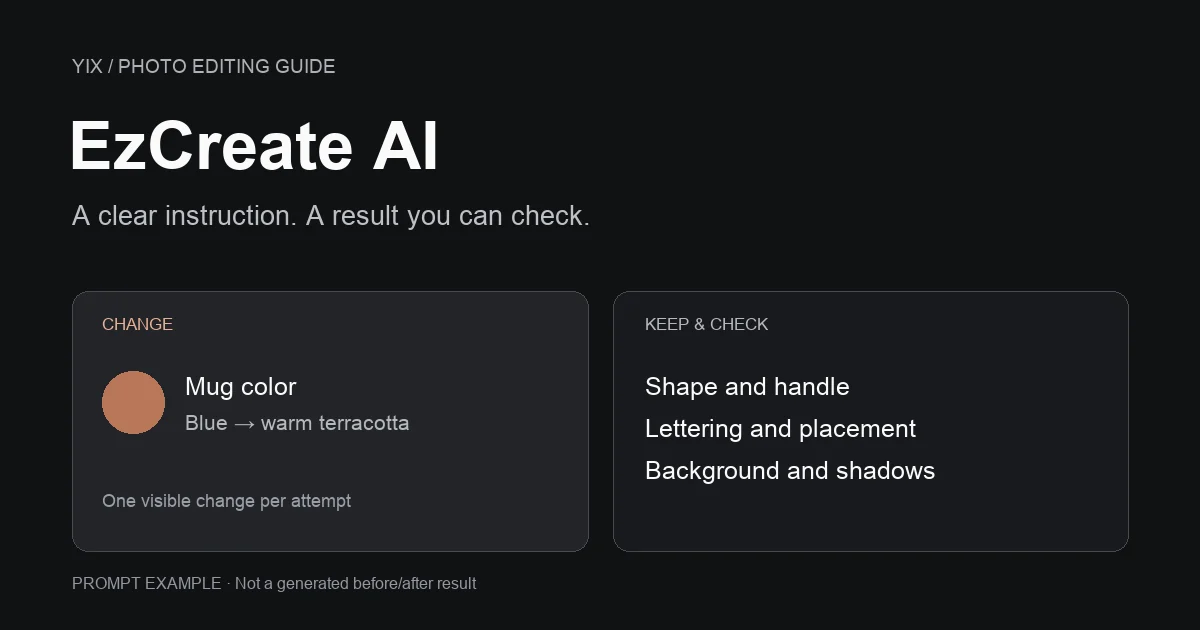
Searching for ez create ai? The photo editor covered here is EzCreate at ezcreate.ai. It lets you upload a photo and describe an edit in words. Open that link if you want the original service; similarly named websites should not be assumed to have the same account or credits.
Before starting, check the allowance shown in the editor. The website's free-use headlines sit alongside a credit system. You can try an edit without treating the service as an unlimited production tool. Below is a practical way to write the instruction, check the result and decide whether another attempt is worth it.
Check the free allowance before editing
On October 10, 2026, EzCreate's homepage FAQ describes 8 guest trial credits and 15 daily credits that registered users can claim. It also offers credit purchases. Those are credits, not a promise of that many finished pictures: check what the selected model charges before generating.
The same page advertises free access and no registration. Read that as an entry point for a trial. Registration and available credits can still matter to continued use. This guide does not confirm every model's current per-image cost or an unlimited free entitlement.
Keep the original file on your device and download a useful result when you get it. Avoid spending all your allowance on tiny wording changes before checking whether the first output preserved the parts you care about.
Prepare one photo and one visible change
Pick a source where the subject is clear. If the task is to change a jacket's color, the jacket should occupy enough of the frame to inspect its seams, buttons and sleeves. A small figure in the background is a poor starting point for judging a local edit.
Choose one change for the first attempt. Replacing the wall, adjusting the subject's pose and changing the lighting together makes it hard to tell which instruction caused an unwanted result. Keep a copy of the original next to the output so that a prettier image does not distract you from an altered face or product shape.
A useful instruction names the object, the change and the details to preserve. For example:
Change only the blue ceramic mug to a warm terracotta color.
Keep its shape, handle, printed lettering and position unchanged.
Preserve the wooden table, background and existing shadows.
This is a prompt-writing example, not a claimed EzCreate result. The preservation requests are criteria for checking the image; they do not guarantee that the model will obey each one.
Follow the upload, edit and review workflow
EzCreate's published instructions describe uploading an image, entering an edit and selecting a model, then reviewing and downloading the result. Its selector labels Nano Banana 2 as VIP and shows an Upgrade option. Check the model’s access and cost in the live selector; the guest allowance should not be assumed to cover every model.
- Upload your source photo and confirm that the editor displays the right image.
- Enter one instruction, using a concrete object name rather than “make it better.”
- Choose the model and review the credit charge before starting.
- Inspect the result at a size where you can compare the changed area with the original.
- Save a useful version before trying another edit.
If the mug's color changes but its lettering becomes gibberish, the task is not complete. Return to the original and simplify the edit, or handle that precise area in a conventional editor. Repeatedly editing an already damaged result can make the lettering harder to recover.
For a background change, inspect the contact shadow and object edges. For a portrait, compare the eyes, jawline and hair. For a product photo, check labels and proportions. These checks tell you whether the picture is usable for your purpose; a small preview cannot do that job reliably.
When Generate shows examples instead of your result
In a Reddit discussion about EzCreate, a user reported that pressing Generate returned generic examples rather than a new image. Another participant asked how many images could be made daily. These are individual reports from an older discussion, not evidence of a current outage or today's allowance.
If you encounter the same symptom, save your instruction first. Check whether your uploaded photo is still selected, whether a job is already running, and whether the page displays a remaining balance or a limit message. Do not count a gallery example as your completed edit, and avoid repeated submissions while the status is unclear.
Once a job has stopped, reloading the page can help you check the current state. You may need to upload the source again. If you contact the service's support, include the time, selected model and visible message; keep account details out of public screenshots. An old forum reply cannot establish why your own attempt failed.
Try the same editing task in Yix
Yix offers a separate image-to-image editor. The button below opens that tool with Nano Banana 2 selected. This is an alternative workflow for editing a source photo, not an EzCreate account, an EzCreate 3/4 model, or a transfer of EzCreate credits.
Upload or paste your image, enter an instruction and choose an aspect ratio close to the source. Sign in when prompted, then review the displayed settings and credit total. Opening the card only prepares the editor; generation starts when you submit your edit.
You can compare your instruction with Yix's built-in colorization example before using a personal photo. That example demonstrates a separate restoration task, so it is not proof of how your mug, face or background edit will turn out. For help describing the source, Image to Prompt can provide a starting description. Keep the final edit instruction focused on what must change.
Make the next attempt count
Write down why you rejected the last output. “The handle changed shape” is actionable; “looks wrong” is not. Start again from the original, reduce the request to the failed detail and keep the same comparison criteria. If exact lettering or a logo must survive untouched, use a tool that lets you protect those pixels directly. Stop when the picture meets the task, rather than using the rest of the allowance just because it remains.