
AI prompts for product photography: three scene recipes
Use AI prompts for product photography with perfume, skincare and drink examples. Learn to edit a scene, check product details and create a short video in Yix.
 Yix Team
Useful AI prompts for product photography start with a clear photo of the item you sell. Describe the setting around that reference: where the product stands, how light reaches the label, and which objects belong nearby. A long list of words such as “luxury” and “stunning” leaves those choices to the model.
Yix Product Studio puts this workflow on one page. Upload a product image, choose a scene, generate a still, then inspect it before creating a five-second video. Below are the three scene recipes used in our perfume, skincare and beverage examples, with advice on what to change and what to check.
Prepare the reference before writing the prompt
Use one front-facing product photo with readable packaging and the entire silhouette visible. A phone photo can work. Put the product on a stable surface near a window, keep the camera level, and avoid reflections that cover the brand name. Shopify's ecommerce photography guide explains a simple window-light setup if you need to take a fresh source image.
Product Studio accepts JPEG, PNG or WebP files up to 10 MB. Choose the intended output ratio before generation: square for a product card, vertical for a mobile placement, or landscape for a wide banner. Leave room around the object, especially if you plan to animate it later.
Our example source images are AI-generated fictional YIX products. They demonstrate the workflow; they are not customer submissions or evidence that every real package will reproduce accurately.
Give the product identity its own instructions
The AI prompts for product photography in Product Studio separate product identity from scene styling. Keep the identity instructions when you edit the background. This is the opening of each built-in image prompt:
Create one realistic commercial product photograph using the supplied reference image as the sole product identity source.

Preserve the exact visible product: silhouette, proportions, packaging color, material, cap or pump, logo placement and all visible printed text. Use the original label as visual evidence; do not redesign or invent branding. Keep the original front-facing angle and make no attempt to invent the hidden back side.
These are instructions, not a guarantee. If the source hides a word behind glare, the model may invent it. Photograph that detail again rather than trying to recover missing lettering with a longer prompt.
Three AI prompts for product photography scenes
In Product Studio, selecting a scene loads its full prompt, including the identity and exclusion instructions. The blocks below are the scene portions. Keep the surrounding instructions when replacing one of these sections.
Perfume: warm stone and controlled reflections
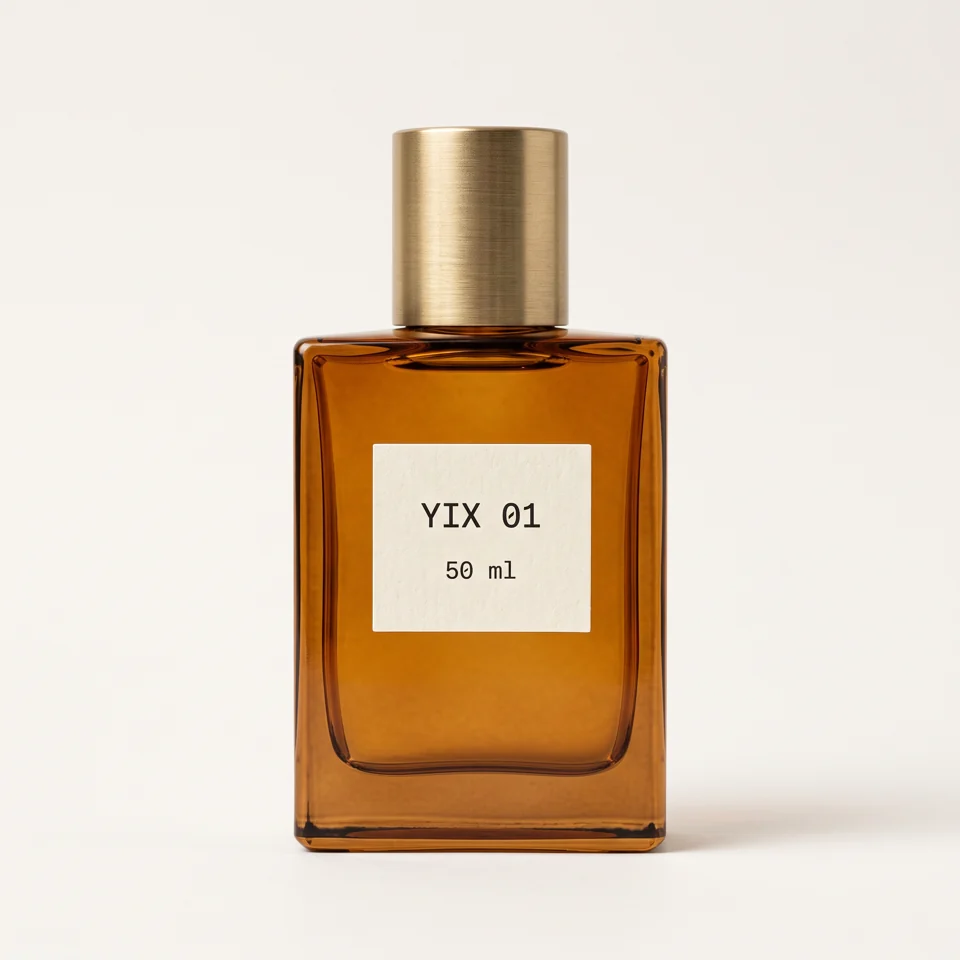
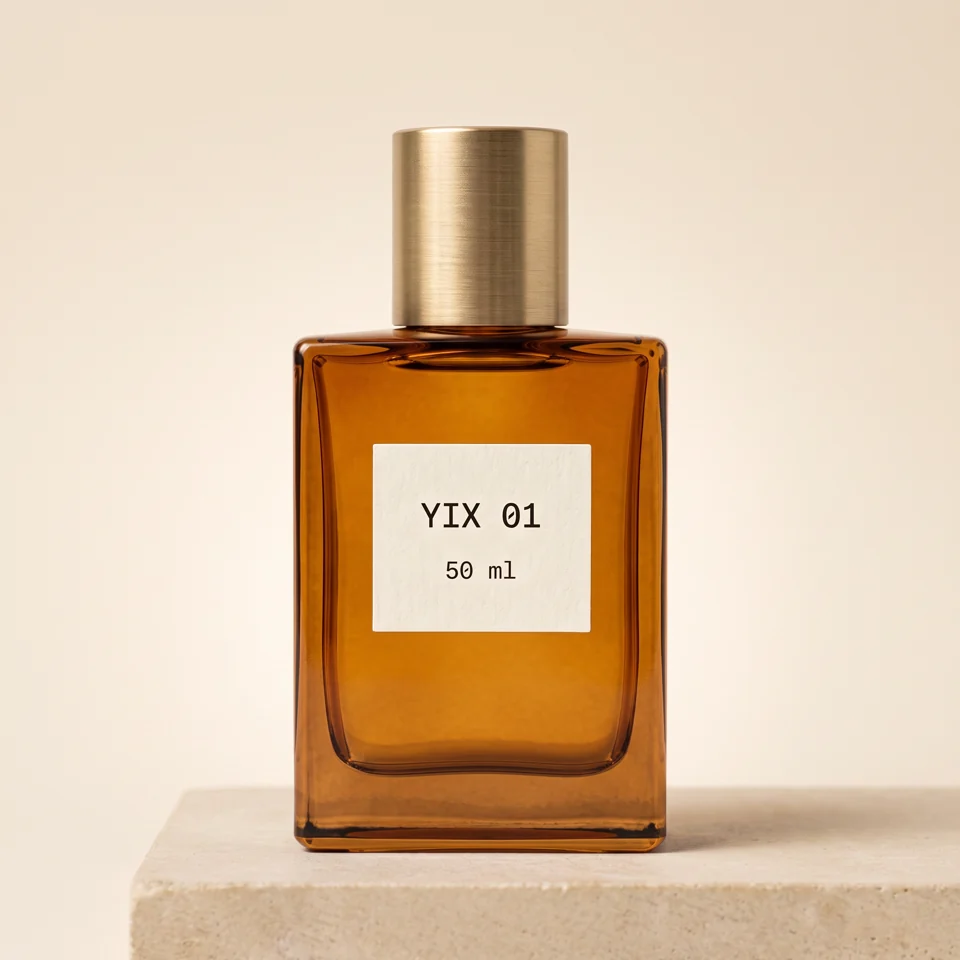
Reference on the left; generated Amber & stone scene on the right.
Place the supplied product upright on a low matte limestone slab. Warm ivory seamless backdrop, restrained amber palette. One large diffused key light at camera-left and a narrow soft rim behind the glass. Physically plausible contact shadow and subtle glass reflections; the front label remains evenly readable. Generous clear space around the full silhouette. Eye-level 85mm commercial still-life photography. The only hero object is the supplied product.
Glass needs enough reflection to look like glass, but a bright streak across the label can make an otherwise attractive image unusable. Compare the cap, bottle shoulders and liquid color with the source. For a different mood, change the stone or backdrop color first and keep the lighting instructions.
Skincare: a quiet botanical background
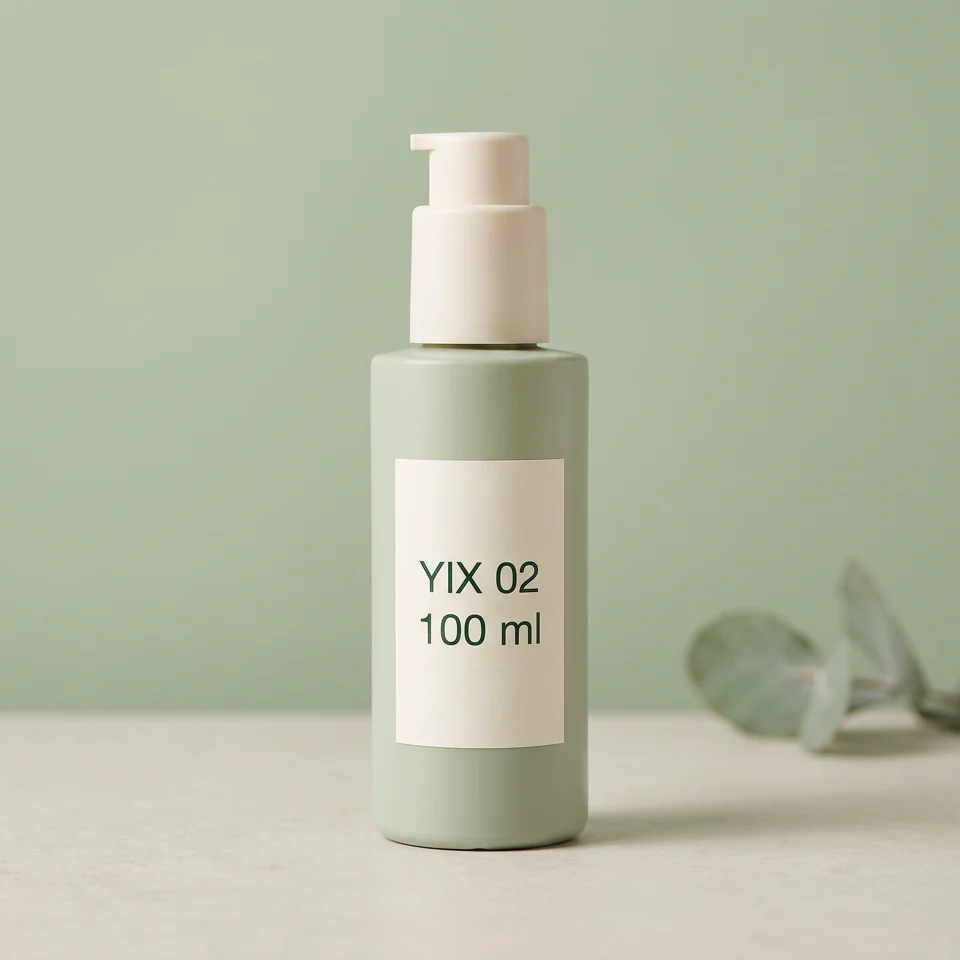
Place the supplied product upright on a pale matte stone surface against a soft sage studio backdrop. Broad diffused window light from camera-left, gentle fill on the label, natural contact shadow. One softly blurred leaf far behind the product, separated from its silhouette. Calm, clean skincare editorial photography, eye-level 85mm lens. Product fully visible, front facing, with generous breathing room. Keep the surface dry and the composition minimal.
The leaf belongs behind the bottle, where it cannot cover the pump or printed ingredients. If your packaging is green too, try a warmer neutral backdrop to separate the edges. Adding a botanical prop does not establish that a product contains that ingredient; choose props that suit what you actually sell.
Beverages: cold styling without a splash
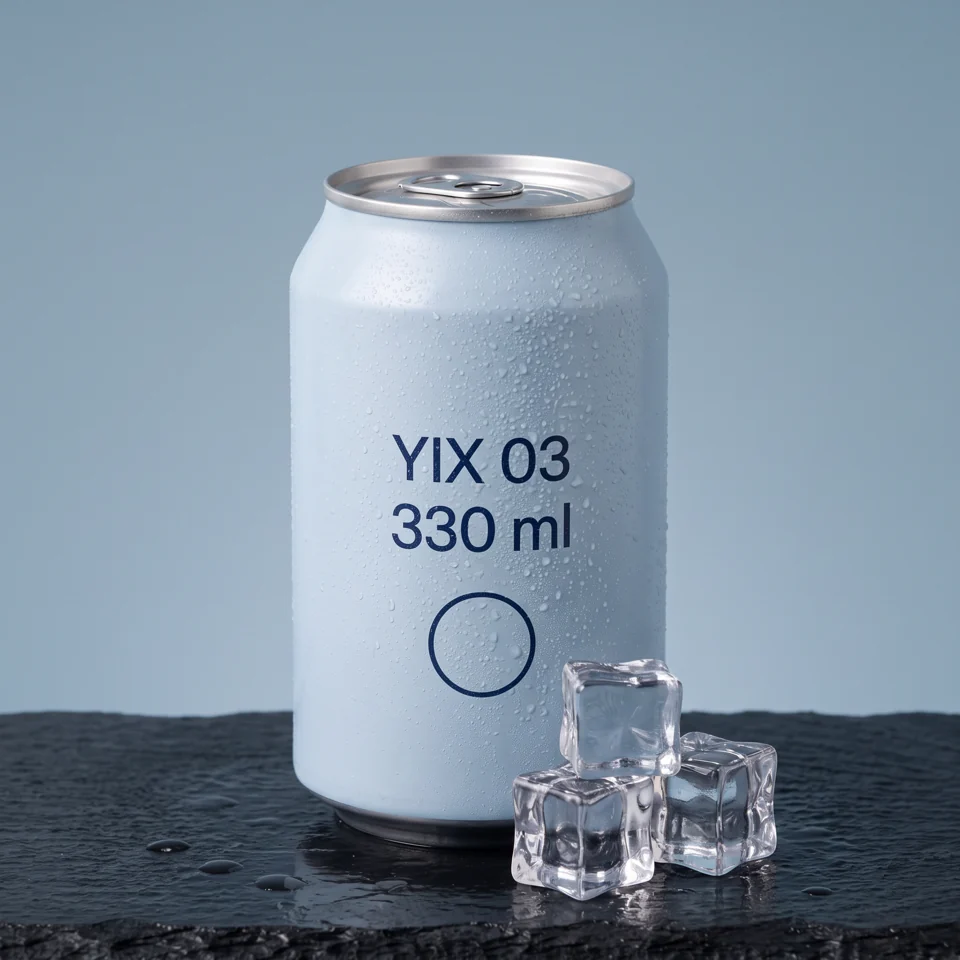
Place the supplied beverage container upright on dark wet slate. A few stationary clear ice cubes sit beside the base, below the front label. Cool blue-grey seamless backdrop, large soft front light and clean edge light. Fine condensation on unprinted areas only; keep the full front branding unobstructed. Eye-level commercial drink photography, crisp material detail and a believable contact shadow. Preserve the actual container and contents. A still scene with no splash, pouring, fruit, hands or extra containers.
Check the pull tab and rim as well as the front graphics. A splash introduces more opportunities to obscure the product. Start with this still composition, then decide whether a more complicated shot is worth another generation.
Edit one instruction at a time
Open “View or edit prompts” to customize both the image prompt and the video motion prompt. Each has a restore-template control. Start by changing one variable, such as the background color, so you can judge what the edit did.
Editing AI prompts for product photography may produce a result that differs from the sample. Even the unchanged template varies with your source image. Changing the image prompt means generating a new still; changing only the motion prompt lets you keep the still you already reviewed.
Review the still before spending credits on motion
Our still examples used Nano Banana 2 at 2K. That image setting currently costs 50 credits. A five-second, silent 720p clip with Seedance 1.5 Pro costs another 100 credits: 150 credits for one image and one video. Other model selections change the quote. Check the amount beside the generate button; a new generation spends credits again. See Yix pricing for credit packages.
Compare the source and result at full size. Read the small print, inspect the outline and check that props do not imply an accessory is included. Only approve the still when it is suitable for your placement.
Product Studio's video step offers compatible models and keeps the clip to five seconds. In our examples, the skincare background moved more than the subtle shadow requested, and the beverage clip pushed in far enough to crop the can later. Watch the whole video, including its last frame. The live examples in Product Studio show those results and their limitations.
Put the recipes to work
Use these AI prompts for product photography as a starting point for a specific item and placement. Upload one clear image to Product Studio, select the nearest scene, and review the still before trying motion. Keep the original photo beside the generated result while you decide what is ready to publish.
Try a reference-led product prompt
Have a visual style you want to recreate? Use Image to Prompt to describe the reference, then read our three-model product-photo experiment. It includes the exact extracted prompt, real Nano Banana 2, FLUX.2 Pro and Seedream 5 Lite outputs, and a documented composition revision.