
ZSky AI video generator: getting started and watermark limits
Use ZSky AI for text or image to video, understand free-plan watermarks and paid exports, and follow a practical checklist before downloading your first clip.
 Yix Team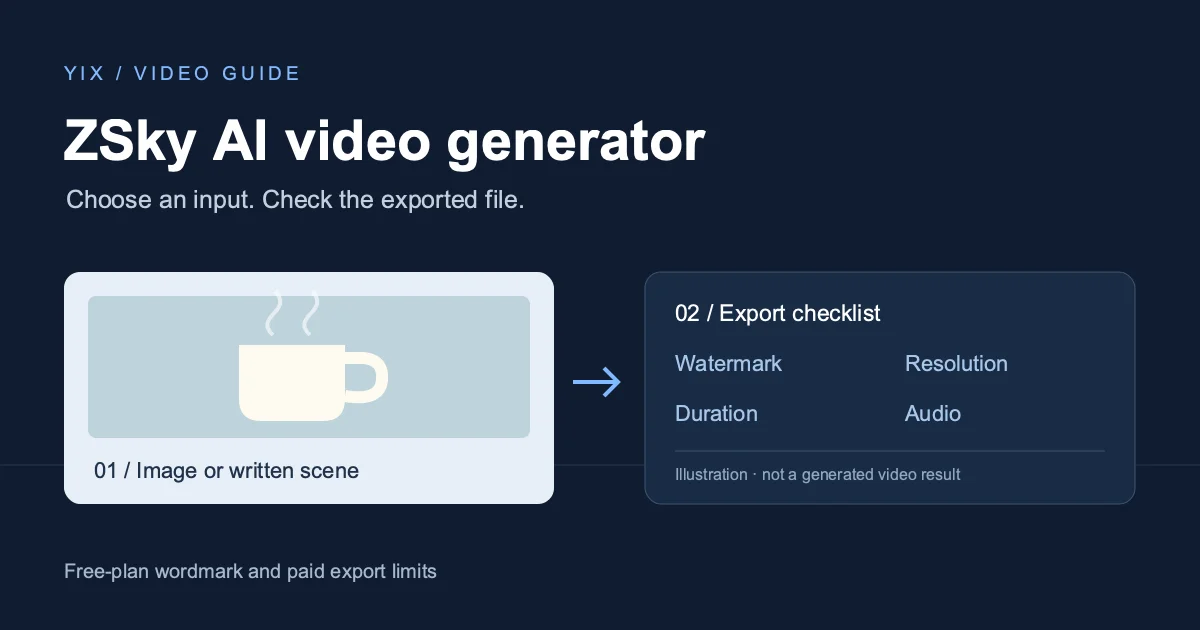
The ZSky AI video generator is available at zsky.ai. You can start with a written scene or a still image. Its free plan includes video generation, but free downloads carry a ZSky wordmark. If you need a clean export, check the paid plan before building a project around the free tier.
This guide covers the published workflow and the output restrictions checked on October 10, 2026. The example below is an original shot brief, not a ZSky test result. We have not timed its generation or compared the quality of paid and free renders.
Start with text or a picture
Use ZSky's text-to-video workflow when you have a scene in mind but no starting image. Describe one shot: what is visible, what moves and how the camera behaves. A short clip has little room for an arrival, a conversation and a scene change. Give the first attempt one job.
Use image to video when the opening composition matters. ZSky documents uploading a JPEG, PNG or WebP, describing the desired motion and downloading an MP4. A photograph gives you a concrete reference for checking the result. It does not guarantee that small lettering, a face or an object's shape will remain identical throughout the clip.
For a product-style test, choose a simple photograph you own: one plain ceramic cup on a table, with space around the handle. Avoid using a detailed label as the first test. If the camera moves around the cup, it asks the generator to invent surfaces that were never visible in the photograph.
Make a first clip you can evaluate
- Open the official ZSky creator and sign in if prompted. Choose video creation and the input method you need.
- For image to video, upload the cup photograph. Check the preview crop before continuing. Keep the handle and the rim inside the frame.
- Add a motion instruction. Start with a fixed camera and one small movement so you can tell which instruction the result followed.
- Review the duration, resolution and audio controls available to your account. Check the plan attached to the export. Save a copy of the source and prompt.
- Generate, play the entire result and download the file you intend to use. Inspect that downloaded file, rather than relying only on the website preview.
An original motion brief for the cup:
Keep the camera fixed on the ceramic cup in the reference image. A thin trail of steam rises slowly and fades above the rim. Keep the cup, handle, tabletop and background still. Preserve the framing and daylight. No hands enter the shot. No cuts or added text.
If you want to try a camera move next, replace the fixed-camera instruction with a slow push-in. Keep the subject and lighting instructions. Changing one variable makes the second attempt easier to judge; changing the camera, object and background at once makes a disappointing result harder to diagnose.
What the free plan includes, and where the watermark appears
The current pricing page lists unlimited website generation on Free, Pro and Max. It also identifies a wordmark plate on free videos and images. Pro is listed at $19 per month with watermark-free output; Max is $99 per month and also removes the watermark. Those are monthly prices, not the effective monthly rate of an annual purchase.
Treat the wordmark as part of the free output when planning a delivery. A prompt asking for "no watermark" should not be used as a way to change the account's export entitlement. If a client requires an unbranded file, confirm that the selected plan provides it and inspect the actual download before delivery.
There is an easy source of confusion: ZSky's text-to-video page still contains a no-watermark statement below an introduction that says free output carries a wordmark. The pricing page and the introduction agree on the free-plan restriction. Check the current export screen before paying or promising a clean file.
Check resolution, duration and audio separately
ZSky's video pages describe HD on Free, 1080p on Pro and 4K on Max. Do not read a headline mentioning 1080p as a promise that every free download has that resolution. After downloading, open the file properties or an editor and check the pixel dimensions.
The published pages also give different maximum durations for paid plans. Use the duration options in the creator for the plan and mode you have selected. For a sequence longer than one generated clip, plan separate shots and assemble them in an editor; do not assume a subscription includes a complete edited film.
Audio needs its own review. Listen for unwanted speech, abrupt starts and sounds that do not match the visible action. A good silent shot may be more useful than a clip with distracting sound. If you add narration or music later, keep the original download so you can return to it.
Max's advertised developer allowance is a separate quota: the pricing page lists 300 video and 1,000 image generations per month for that access. This is different from its claim of unlimited generation inside the website.
Review the export before sharing it
Check the opening frame against the source, then pause halfway through and at the end. For the cup example, watch the handle, rim and contact with the table. Steam should move; the ceramic should not wobble. If you requested a fixed camera, compare the table edges across frames.
Open the file at its intended display size. Look for cropped subjects and changes that a small preview hides. Confirm the watermark, dimensions, duration and sound. Save the accepted file locally with the source image and a short note about the settings. That gives you a useful starting point for another shot.
Try the same image-to-video task on Yix
If you want another place to animate your own photograph, the card below opens Yix with Seedance 1.5 Pro, image input, a five-second duration, 720p, 16:9 and audio off. Crop your starting image to the framing you want, such as 16:9, then upload it and paste the motion brief. Image-to-video output can follow the source image shape, so the ratio selector alone is not a substitute for preparing the image. Review the displayed Yix credit cost first.
This is a Yix alternative workflow for the same task. It does not run ZSky's generator or carry over ZSky plan benefits. Opening the card selects settings; it does not start a paid generation. You can also use the prompt generator to prepare a different scene description, then return to Yix video creation.