
Krea 2 edit: choose the right image-editing path
Looking for Krea 2 image edit? Compare official style reference, community Identity Edit, and Yix image editing, with setup links, costs, and practical limits.
 Yix Team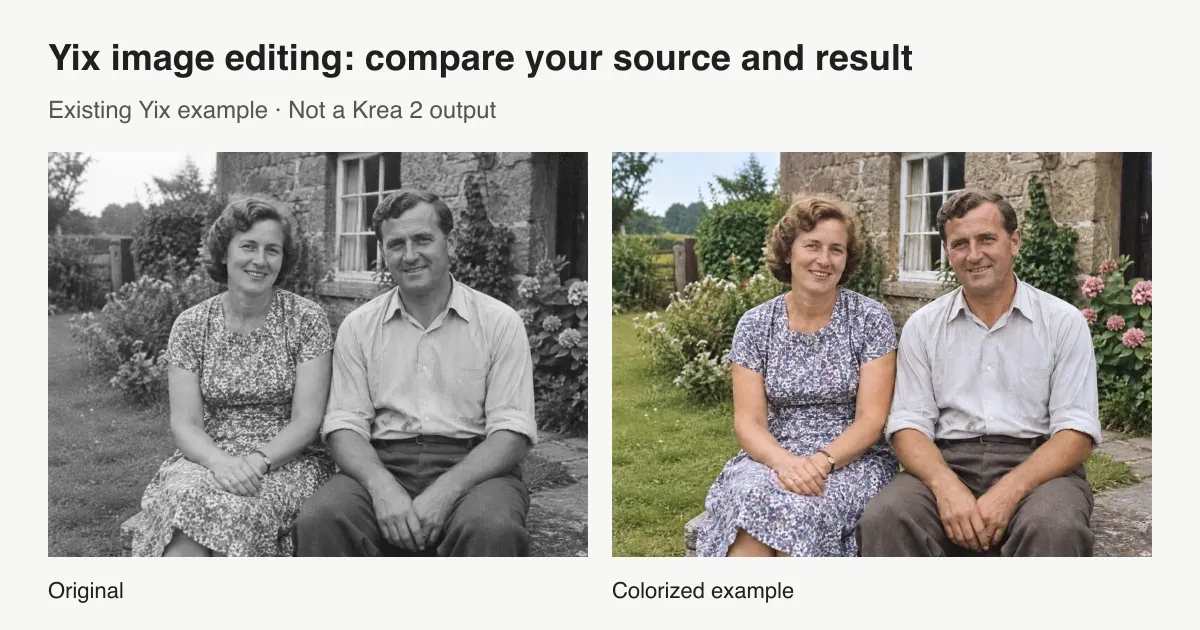
Krea 2 edit can mean two different workflows. The official ComfyUI guide shows image generation and style reference; the community Identity Edit project adds instruction-based editing to Krea 2. An uploaded reference in a generation workflow does not, by itself, mean the original photo will be preserved while one object changes.
If you want the community Krea model, start with its author's workflow below. If your task is simply to change an existing image without installing ComfyUI, open Yix image editing. Yix uses its own listed models and does not offer Krea 2 inference. This guide explains how to choose before you upload or pay.
Choose by what the image must do
| Your task | Start here | What to check |
|---|---|---|
| Generate a new scene with a reference's visual style | Official Krea 2 style-reference workflow | Similar style does not promise the same subject or layout |
| Run Krea 2 locally with an edit instruction and source image | Community Identity Edit | Matching model, LoRA, nodes and workflow versions |
| Edit a photo in a browser without setting up local inference | Yix image-to-image | Selected Yix model, displayed credit cost and result quality |
| Replace exact lettering or preserve a logo pixel for pixel | A conventional image editor | Masks, typography and deterministic placement |
For example, “make a new poster with this watercolor look” is a style-reference task. “Change the jacket in this photo to navy and keep the same person” needs an editing workflow. Both accept an image, but their success criteria differ.
What the official ComfyUI workflow covers
The official Krea 2 ComfyUI guide provides text-to-image and style-reference workflows. It describes Raw as the base model for training and fine-tuning, and Turbo as a distilled generation variant. Its reference workflow guides the style of a newly generated image.
Use that path when you want to explore a visual direction. Upload a style reference, describe the new scene and compare outputs for palette and mood. Judge it against the brief for the new picture; a pleasing result is not evidence that it can preserve every detail of a source photo.
These statements describe the linked ComfyUI documentation checked on October 8, 2026. They do not establish the complete feature set of every Krea product or API. Yix has not benchmarked Krea 2 for this article.
The community Identity Edit path
ComfyUI-Krea2Edit is a community node pack for the Krea 2 Identity Edit LoRA. Its README lists Raw or Turbo, the matching text encoder, the edit LoRA and a ComfyUI build with native Krea 2 support. The README currently recommends the v1.2 weights; that is a community edit version, not an official “Krea 2 Turbo v2” release.
Follow the author's installation instructions, restart ComfyUI, and open a matching example from the repository's workflow folder. Keep the base model and LoRA versions recorded with your workflow so you can reproduce a result later.
The author requires both Krea2EditModelPatch and Krea2EditGroundedEncode: the source image must reach the model and instruction encoder. A stock text-encoding node is not an equivalent replacement. Use the documented Raw or Turbo sampling setup rather than mixing settings from unrelated examples.
The README also discusses reference geometry, likeness controls and memory management. Treat those as the author's guidance, not Yix performance measurements. Begin with one source image and one visible change. Compare the face, outlines and framing against the original before trying a more complex edit. “Identity Edit” is the project name, not a guarantee of perfect identity preservation.
If that local workflow is what you came for, the author links are the next step. This article does not sell those weights or offer installation support. Check the applicable model and LoRA licenses separately before commercial use; a node repository's license alone does not settle the rights to every weight it loads.
A browser alternative for an ordinary image edit
Yix image editing accepts a source image and a text instruction. Choose from GPT Image 2.5 Sunburst, Nano Banana 2 and Seedream 5 Lite in the editor. The available quality settings and total credits appear before generation.
- Upload or paste your source image. Keep a separate copy of the original.
- Ask for one change and name the details that matter.
- Choose a model, quality and an aspect ratio close to your source.
- Sign in, check the displayed cost and generate one image.
- Compare the result with the original at full size, then download it or use the result for another edit.
Here is an instruction to adapt to a product photo. It is a writing example, not a measured Krea or Yix output:
Change only the wall behind the chair to a pale warm gray.
Keep the chair's shape, fabric color, camera angle and floor shadow.
Do not add objects, text or a border.
If the chair changes too, reject that result rather than accepting the background alone. Shorten the instruction, return to the original, or try another model. For exact branding and typography, finish in a conventional editor.
An existing Yix example
The editor includes this before-and-after colorization example using Yix's fictional couple assets. It is an existing Yix example, not a Krea result or a customer's photograph. It shows the sort of source-and-result comparison you should make; it does not establish how reliably a different edit will work.
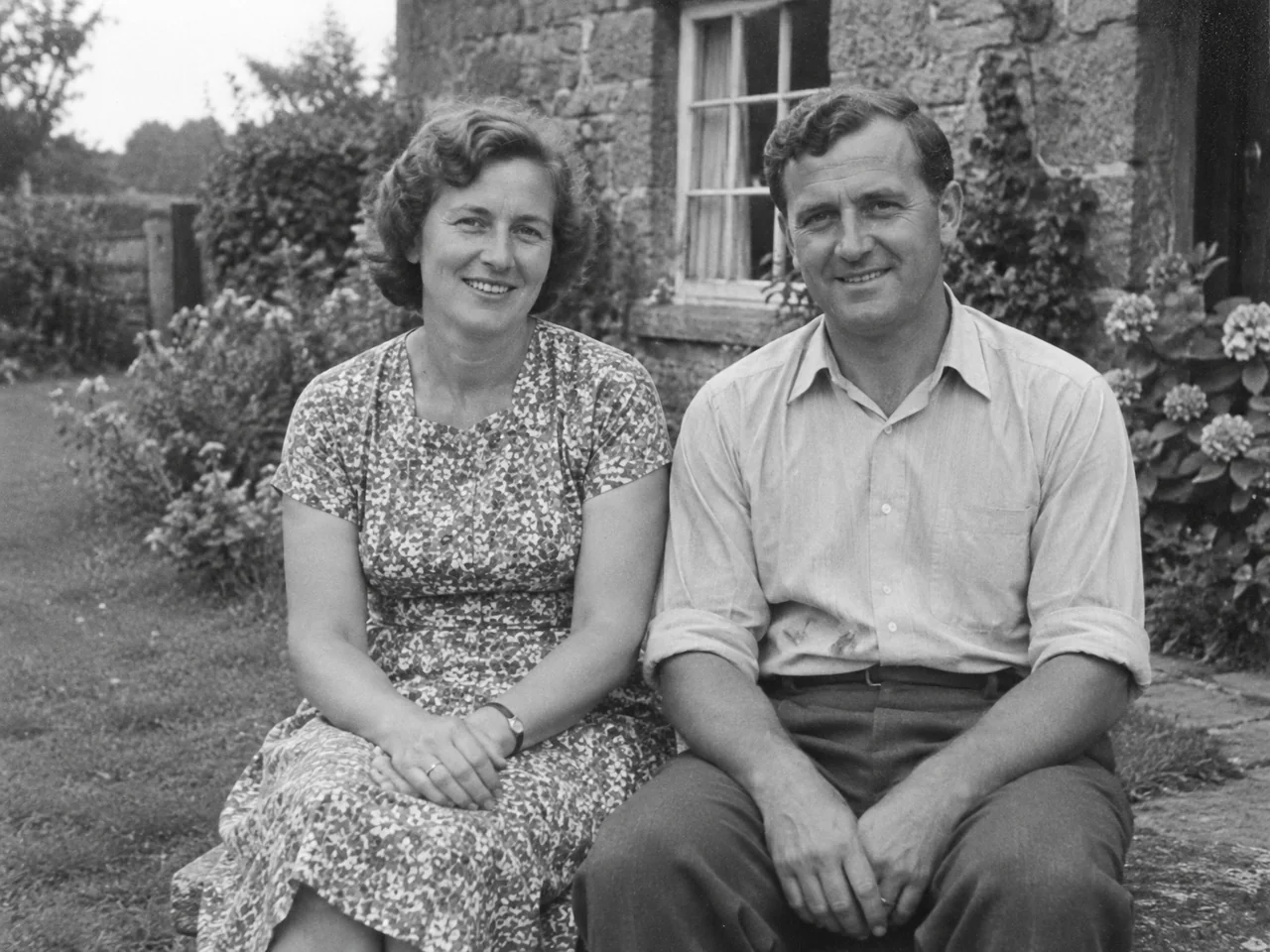
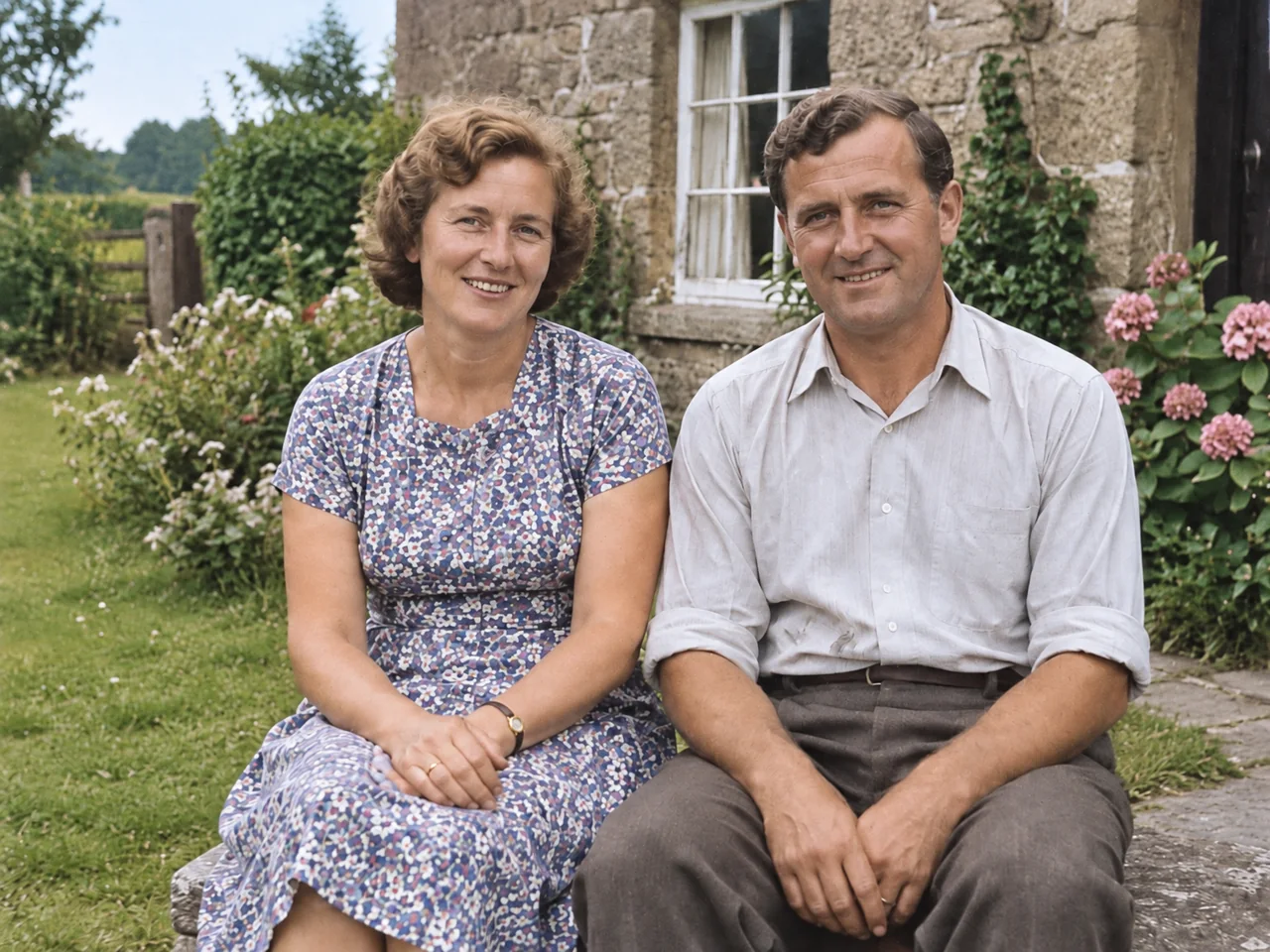
View the comparison in the Yix editor. For an old photo, you can also use Photo Restoration.
Credits, payment and interrupted edits
For occasional edits, Yix's existing one-time credit pack is $4.90 for 400 credits. It is not a Krea subscription. The number of edits depends on the chosen Yix model and quality; check each request's displayed cost rather than assuming 400 images.
Payment confirmation grants credits to your account through Yix's existing checkout flow. A return from checkout alone does not prove payment has completed. If you return before the balance updates, check billing and your credits before buying again.
Yix keeps pending requests recoverable so an interrupted connection can be checked without starting a second request. Confirmed failed generation returns the charged credits; an unknown or still-processing request needs a status check. A successful result you dislike is different from a technical failure. A new revision normally uses credits again. Draft inputs have a limited recovery window, so retain the original file yourself.
Start an image edit on Yix, or return to the community Krea workflow if running that model locally is your priority.
Krea and other model names belong to their respective owners. Yix is not affiliated with Krea or the community Identity Edit project.